
Trust Badges
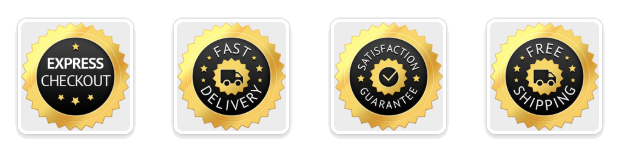
Trust Badges display a row of badge icons that reassure customers your store is safe and reliable. You can create multiple configs, for example one per market or customer type, each with its own badges, icon style, and conditions. The first config whose conditions match is shown.
How to set up
Section titled “How to set up”- Go to Trust Badges in the app.
- Click Create to add a new config.
- Configure display settings (see below).
- Add Display Rules to target specific customers or markets.
- Click Save.
- In the Shopify checkout editor, add the Trust Badges block to the checkout page.
Display settings
Section titled “Display settings”| Setting | Description |
|---|---|
| Heading | Text shown above the badges. Leave blank to hide. |
| Badge size | Base (56px) or Small (40px) |
| Layout | Horizontal (badges side by side) or Vertical (badges stacked, icon + text in a row) |
| Badges | List of badge icons |
| Conditions | Only show this config when cart matches conditions |
Badge icon types
Section titled “Badge icon types”Each badge supports 3 ways to set the icon:
| Type | Description |
|---|---|
| Preset | Pick from built-in badge images (Free Shipping, Secure Payments, etc.) |
| Custom URL | Paste any image URL (PNG, SVG, etc.) |
| Shopify Icon | Pick from Shopify’s built-in icon set (delivery, lock, return, star, etc.) |
Each badge also has:
- Heading: bold text shown below the icon (e.g. “Free Shipping”)
- Subtext: smaller text shown below the heading (e.g. “No Extra Costs”)
Available presets: Express Checkout, Fast Delivery, Fast Shipping, Free Delivery, Free Shipping, Mastercard Visa, Money Back 100%, Money Back 30 Days, PayPal, Premium Quality, Satisfaction, Secure Payments.
Available Shopify icons: delivery, delivered, return, lock, check-circle-filled, check, star-filled, star, gift-card, discount, globe, store, info-filled, savings, order, cart, credit-card, email, phone, location, calendar, clock, profile.
- Shows on checkout page only.
Use cases
Section titled “Use cases”| Scenario | Conditions to set |
|---|---|
| Show eco-friendly badges only for relevant products | Product tag contains eco or sustainable |
| Show a localised set of badges per market | Market equals Australia |
| Show B2B-specific trust messaging for wholesale buyers | Customer tag contains wholesale |
| Show payment-focused badges for high-value carts | Cart total is greater than $200 |
Best practices
Section titled “Best practices”- Less is more. 3–5 relevant badges are more effective than a large row of icons.
- Show 3–5 badges maximum as more than 6 looks cluttered and loses impact.
- Pair a heading + subtext on each badge for context: “Free Returns” + “Within 30 days”.
- Use Shopify icons for a clean, consistent look without needing custom images.
- Match the most important trust concern to the badge set. Shipping stores should highlight delivery; digital stores should highlight security.
- Create a second config with no conditions as a fallback to always show something.
When to use this vs Payment Icons
Section titled “When to use this vs Payment Icons”| Trust Badges | Payment Icons |
|---|---|
| General trust and reassurance (returns, security, quality, eco) | Specifically for showing accepted payment methods (Visa, PayPal, Apple Pay, etc.) |
| Icon + heading + subtext format | Compact icon-only row |
| Use for building brand trust and reducing checkout hesitation | Use to reassure customers their preferred payment method is accepted |
Both can be active simultaneously. Trust Badges above and Payment Icons below works well.