
Auto Add Product
Auto Add Product shows a dedicated section in checkout when the customer meets your conditions. When the section appears, customers need to click to add the product to their cart, as Shopify restricts adding products automatically.
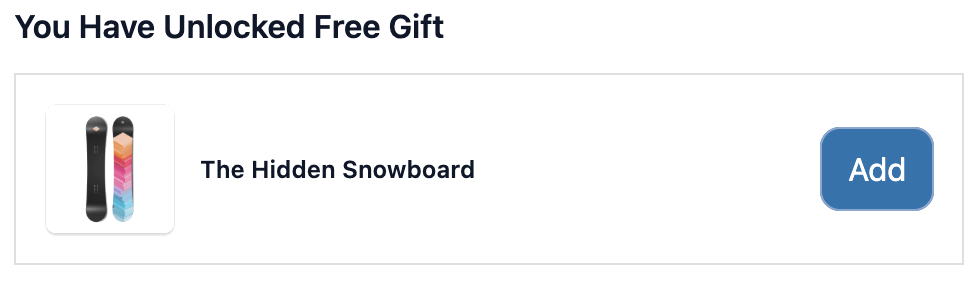
Conditions can be anything: cart total, specific products in cart, customer tag, shipping country, and more.
How it works
Section titled “How it works”- You set a product and conditions (e.g. cart total ≥ $50, customer has a loyalty tag, specific product is in cart).
- When a customer qualifies, a dedicated block appears in checkout showing the product.
- The customer clicks to add it to their cart.
- If the customer no longer meets the conditions, the block disappears automatically.
How to set up
Section titled “How to set up”- Go to Checkout Upsells and click Create.
- Select Auto Add as the type.
- Configure display settings (see below).
- Click Select variant and pick the product and variant you want to offer. You can only select one variant.
- Set Display Rules to control when the block appears.
- Click Save.
- In the Shopify checkout editor, add the Auto add product block to the checkout page.
Display settings
Section titled “Display settings”| Setting | Description |
|---|---|
| Heading | Text shown above the product block (e.g. “You’ve unlocked a free gift!”). Leave blank to hide. |
| Banner message | Optional green confirmation banner shown when the customer clicks add (e.g. “A free gift has been added to your cart!”). Leave blank to hide. |
Product setup
Section titled “Product setup”The product you select must exist in your Shopify admin. Make sure the price is set correctly in Shopify as the app uses the product’s Shopify price at checkout.
If your product has variants (size, colour), select the specific variant you want to offer in the form. Customers cannot select a variant.
- The block appears and disappears automatically based on your conditions.
- Customers must click to add the product — Shopify policy does not allow apps to add items to cart automatically.
- The selected variant is fixed. Customers cannot choose a different variant.
- Only one Auto Add config shows at a time. The first one whose conditions match is used.
Use cases
Section titled “Use cases”| Scenario | Condition to set |
|---|---|
| ”Spend $50, get a free tote bag” | Cart total is greater than or equal to $50 |
| Free sample pack with qualifying orders | Cart total threshold + specific product tag |
| Loyalty member gift | Customer tag equals loyalty member |
Best practices
Section titled “Best practices”- Always set at least one Display Rule. Without conditions the block appears for every customer and loses the “earned” feeling that makes these offers work.
- Pre-select a variant that doesn’t require size or colour choice. A one-size item avoids confusion since customers can’t change the variant.
- The heading is the most important element: “You’ve qualified for a free gift!” converts better than “Here’s a product”.