
Extra Product
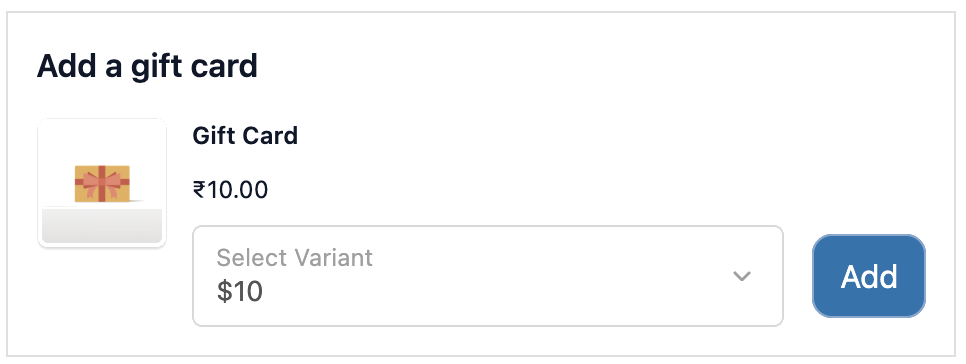
Extra Product shows a paid add-on inside checkout that the customer can add to their order for an additional price. Unlike a standard upsell, this type is designed for products that are directly related to what the customer is already buying, such as warranties, extended care, gift wrapping, engraving, and premium packaging.
The customer pays for the add-on alongside their order with no separate transaction. It is added to their checkout total.
When to use Extra Product
Section titled “When to use Extra Product”- Warranty or protection plans: offer 1-year or 2-year coverage alongside a product
- Extended care or service packages: setup, installation, or support add-ons
- Gift wrapping: let customers add gift wrap or a gift box for a fee
- Premium packaging: upgrade to a branded box or special presentation
- Engraving or personalisation fee: charge for a customisation service
- Insurance: shipping insurance or product insurance at a flat rate
How to set up
Section titled “How to set up”- Go to Checkout Upsells and click Create.
- Select Extra Product as the type.
- Select the product to offer:
- Manual: pick a specific product or variant
- Automatic: the app selects based on cart contents
- Collection: choose from a product collection
- Configure the display settings. Write a heading that clearly explains what the add-on is and why the customer should want it.
- Optionally add a campaign image (e.g. a photo of the warranty card or gift box).
- Set Display Rules if the add-on is only relevant for certain products or customers.
- Set a schedule if the offer is time-limited.
- Click Save.
Display settings
Section titled “Display settings”| Setting | Options |
|---|---|
| Layout | List or grid |
| Show price | Yes / No (always recommended for paid add-ons) |
| Show savings badge | Yes / No (useful if the add-on is discounted) |
| Button text | Custom label (e.g. “Add warranty”, “Yes, protect my order”) |
| Button style | Primary / Secondary / Plain |
| Variant editor | Allow customers to select a variant (e.g. 1-year vs 2-year warranty) |
| Campaign image | Optional image for the offer section |
Conditions & scheduling
Section titled “Conditions & scheduling”Use display rules to show the add-on only when it makes sense:
- Show a warranty only when specific products (or product types) are in the cart
- Show gift wrapping only during the holiday season (use schedule for this)
- Show a protection plan only for orders above a certain value
See Display Rules for all available rules.
Where it appears
Section titled “Where it appears”Works on checkout page. You must add the Checkout Upsell block in the Shopify checkout editor.
A/B testing
Section titled “A/B testing”You can create a B variant to test different add-on products or price points. Open an existing Extra Product upsell and click Create A/B variant. The app splits views between A and B and tracks revenue from each.
Product setup tips
Section titled “Product setup tips”- Create a dedicated Shopify product for the add-on (e.g. “1-Year Warranty – $9.99”). This keeps fulfilment clean and makes the line item clear on the order.
- If you offer multiple coverage tiers (1-year, 2-year), create variants on a single product and enable the variant editor so the customer can choose.
- The product price in Shopify is what the customer pays with no override applied. Set the price correctly on the Shopify product.
- You can hide the product from your storefront (set it to Draft or use a hidden collection) so it only appears via the upsell, not in your regular catalogue.