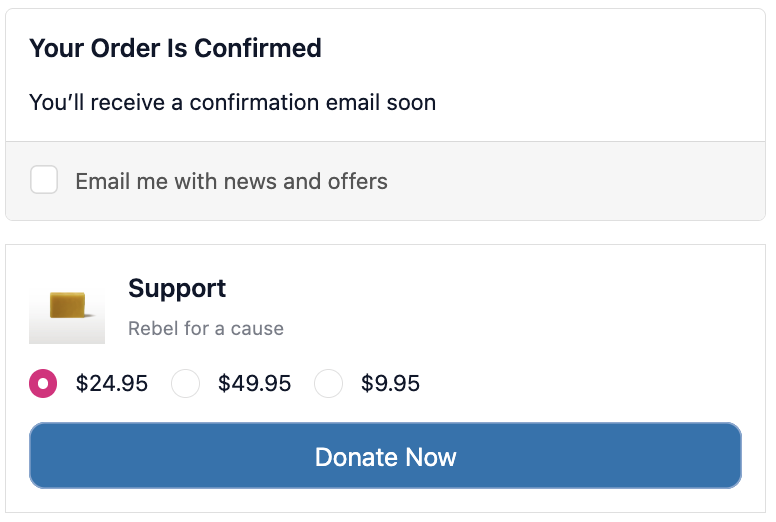
Thank You Page Donation
Thank You Page Donation adds a giving option on the thank-you page, the screen customers see right after completing their order. You set a cause name and 2–3 fixed donation amounts. When the customer donates, a new Shopify order is created for the selected amount.
When to use Thank You Page Donation
Section titled “When to use Thank You Page Donation”- Your brand supports a charitable cause and you want to give customers a way to contribute at the highest-engagement moment, right after they’ve just bought
- You run cause-marketing campaigns tied to seasons or events (e.g. Earth Month, giving season)
- You want to collect micro-donations that add up across many orders
- You want to show brand values immediately after purchase
How to set up
Section titled “How to set up”- Go to Thank You Page Donation and click Create.
- Enter the cause name, which is displayed to the customer (e.g. “Reef Restoration Foundation”).
- Enter 2 or 3 fixed donation amounts in your store’s currency (e.g. 1, 3, 5).
- Write a short description explaining what the donation supports.
- Optionally upload a cause image (Shopify CDN URL or MediaImage GID from Admin → Content → Files).
- Set Display Rules if you only want the donation block to appear for certain orders.
- Set a schedule if the campaign runs for a fixed period.
- Click Save.
- In the Shopify checkout editor, add the Thank You Page Donation block to the thank-you page.
Display settings
Section titled “Display settings”| Setting | Options |
|---|---|
| Cause name | Displayed above the donation options |
| Cause description | Short text explaining what the cause does |
| Donation amounts | 2–3 fixed amounts (e.g. $1, $3, $5) |
| Button text | Custom label (e.g. “Donate now”, “I want to give”) |
| Campaign image | Charity logo or campaign photo |
Conditions & scheduling
Section titled “Conditions & scheduling”- Use Display Rules to show the donation block only for specific customer segments or order types. For example, only for orders above $30 or customers tagged as loyalty members.
- Use Schedule to run seasonal giving campaigns. Set start and end dates so the block activates and deactivates automatically.
See Display Rules for the full list of available rules.
Where it appears
Section titled “Where it appears”Works on thank-you page. You must add the Thank You Page Donation block in the Shopify checkout editor on the thank-you page.
How donations are handled
Section titled “How donations are handled”When a customer donates, a new Shopify order is created for the selected donation amount. You are responsible for distributing the collected amount to the charity or cause. The app does not connect to any charity platform directly. It only creates the order.
Best practices
Section titled “Best practices”- Keep donation amounts small and round. $1, $3, $5 outperform larger amounts because they feel like a small add-on rather than a big commitment.
- Use a well-known cause or one personally connected to your brand. Customers are more likely to donate when they understand the cause.
- A campaign image, especially a charity logo, significantly increases trust and participation.
- For the same donation option shown when customers return to check their order, see Order Status Page Donation.