
Checkout Upsell
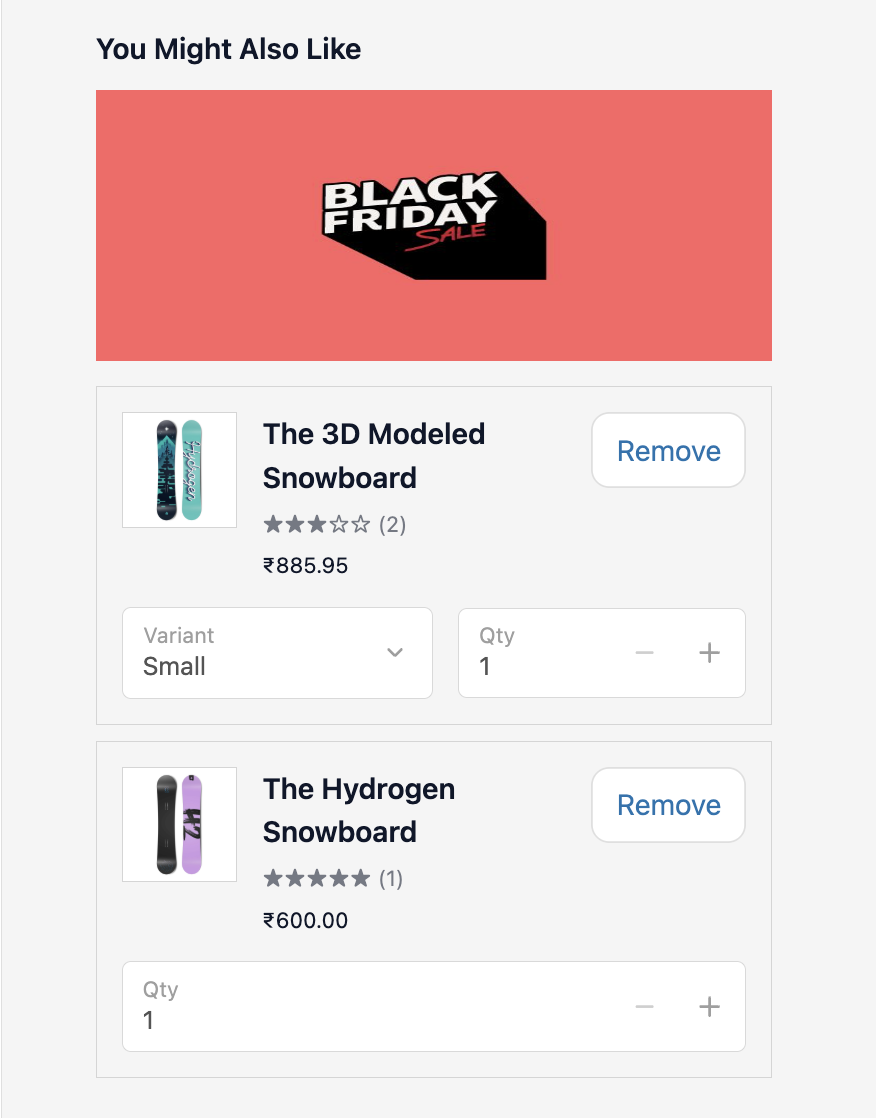
A Checkout Upsell shows a paid product offer to customers while they are on the checkout page, before they complete their order. The customer can add the product to their order with a single click.
How to set up
Section titled “How to set up”- Go to Checkout Upsells and click Create.
- Select Checkout Upsell as the type.
- For A/B testing, toggle Enable A/B Testing. A second product selection section appears for Variant B. All other display settings are common.
- Set Display Rules if you want the offer to appear only for certain carts, customers, or locations.
- Select the product to offer:
- Manual: pick specific products or variants
- Collection: choose from a product collection
- Product organisation: filter by product type, tag, or vendor
- Configure display settings (see below).
- Set a schedule (start/end dates) if this is a time-limited promotion.
- Click Save.
- In the Shopify checkout editor, add the Upsell block to the checkout page.
Display settings
Section titled “Display settings”| Setting | Options |
|---|---|
| Upsell heading | Text shown above the upsell block (e.g. “You might also like”) |
| Campaign image | Optional banner image shown above the products |
| Layout | Horizontal carousel / Vertical carousel |
| Button text | Custom label (e.g. “Add to order”, “Yes, add this!”) |
| Button style | Primary / Secondary |
| Variant selector | Allow customers to select a variant (size, colour) before adding |
| Show product description | Show a collapsible description under each product |
| Allow editing quantity | Let customers change the quantity before adding |
- Only one upsell is shown at a time. The first upsell whose conditions match is used.
- Revenue per variant is tracked separately in Revenue Analytics.
- Works on checkout page only.
Use cases
Section titled “Use cases”| Scenario | Setup |
|---|---|
| Apparel: show matching socks or a hat when shoes are in the cart | Use product condition: Product contains shoes |
| Electronics: show a case when a phone is in the cart | Use product type or product tag condition |
| Supplements: cross-sell a complementary product | Manual product selection |
| A/B test two different offers | Toggle Enable A/B Testing, select different products for Variant B |
Best practices
Section titled “Best practices”- Use display rules to match the offer to what’s in the cart because a relevant offer converts significantly better than a generic one.
- Keep button text action-oriented: “Add to order” or “Yes, add this” outperforms “Buy now” in checkout context.
- Always show price.
- When A/B testing, only the products differ between variants — heading, layout, and conditions are the same for both.