
FAQ Section
The FAQ Section lets you add a collapsible accordion of frequently asked questions to your checkout and post-purchase pages. Each question expands when clicked so the page stays clean.
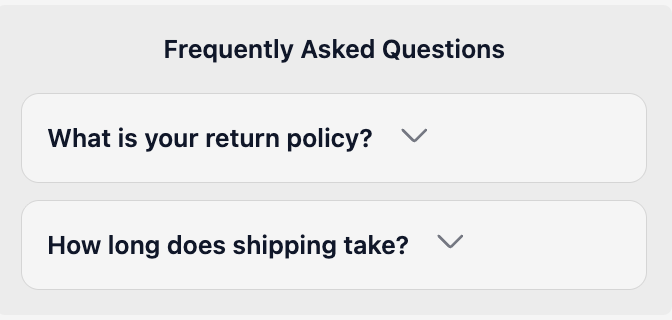
How to set up
Section titled “How to set up”- Go to FAQ Section in the app.
- Configure display settings (see below).
- Click Save.
- In the Shopify checkout editor, add the FAQ Section block to the relevant page (checkout, thank you page, or order status page).
Display settings
Section titled “Display settings”| Setting | Description |
|---|---|
| Status | Enable or disable the FAQ block |
| Section heading | Optional heading shown above the FAQ items |
| FAQ items (up to 10) | Question + answer pairs |
| Show on Checkout | Show the FAQ section on the checkout page |
| Show on Thank You Page | Show the FAQ section on the Thank You Page |
| Show on Order Status Page | Show the FAQ section on the Order Status Page |
- Works on checkout, thank you page, and order status page.
- One FAQ config per store. Toggle Thank You Page / Order Status Page separately.
- Up to 10 question/answer pairs per FAQ block.
- Questions without both a question and answer are filtered out automatically.
- Keep answers concise as customers are mid-checkout and won’t read long paragraphs.
Best practices
Section titled “Best practices”- Answer the top 3–5 questions you get at checkout most often. Check your support tickets for real questions.
- Keep answers to 1–2 sentences. Link to a longer help page if more detail is needed.
- Put the most common question first as most customers won’t scroll past item 2.
- Use the FAQ on the Order Status Page to answer post-purchase questions (“Where is my order?”, “How do I return?”).
- Add a “Still need help?” item at the end with a link to your contact page.