
Payment Icons
Payment Icons shows a row of icons representing the payment methods your store accepts. Displaying familiar icons like Visa, Mastercard, PayPal, Apple Pay, and Klarna reassures customers they can pay with their preferred method.
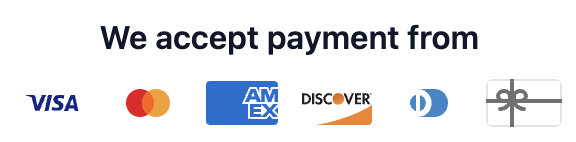
You can create multiple configs with different conditions, for example show UPI and RazorPay icons for Indian customers and iDEAL and Klarna for Dutch customers. The first config whose conditions match is shown.
How to set up
Section titled “How to set up”- Go to Payment Icons in the app.
- Click Create to add a new config.
- Configure display settings (see below).
- Add Display Rules to target specific countries or customer types.
- Click Save.
- In the Shopify checkout editor, add the Payment Icons block to the checkout page.
Display settings
Section titled “Display settings”| Setting | Description |
|---|---|
| Status | Toggle to enable or disable this config |
| Heading text | Shown above the icons. Leave empty to hide. |
| Auto-detect payment methods | Automatically show icons matching the store’s active payment options |
| Additional icons | Pin specific icons that always appear, regardless of auto-detect |
| Conditions | Only show when cart matches conditions |
- Icons are displayed as a horizontal row at checkout.
- The icon selector is searchable in the app admin form. Type a provider name to find it quickly.
- Supported icons include all major card networks, digital wallets, and BNPL providers.
- Shows on checkout only.
Use cases
Section titled “Use cases”| Scenario | Conditions to set |
|---|---|
| Show UPI and Razorpay icons for Indian customers | Country is India |
| Show Klarna and iDEAL for European customers | Country is Netherlands or Germany etc. |
| Show only card icons for B2B customers (no BNPL) | Customer tag contains wholesale |
| Show all icons with no conditions (default) | No conditions |
Best practices
Section titled “Best practices”- Enable Auto-detect so icons stay in sync when you add or remove payment providers in Shopify settings.
- Use Additional icons to pin important methods that auto-detect might miss (e.g. store credit, gift cards).
- Create one config per major market with relevant local payment icons. Customers trust what they recognise.
- 4–8 icons is optimal. More than 10 can look cluttered on mobile screens.
When to use this vs Trust Badges
Section titled “When to use this vs Trust Badges”| Payment Icons | Trust Badges |
|---|---|
| For showing which payment methods are accepted (Visa, PayPal, Apple Pay, Klarna) | For general trust and security messaging (free returns, secure checkout, eco-friendly) |
| Icon-only, compact row | Icon + heading + subtext, more descriptive |
| Use to reduce “will my card work?” anxiety | Use to reduce broader purchase hesitation |