
Order Note
The Order Note field adds a free-text area to checkout where customers can leave special requests, personalisation details, or any other message for the merchant. It saves directly to the Shopify order.
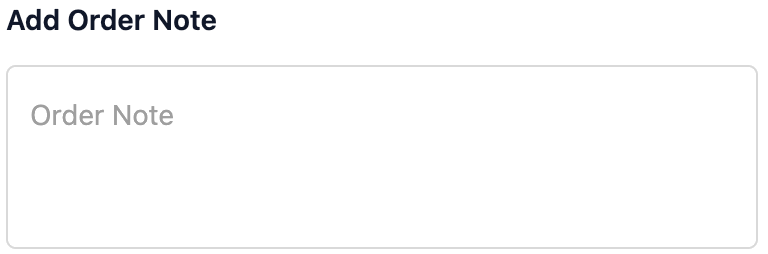
How to set up
Section titled “How to set up”- Go to Order Note in the app.
- Configure display settings (see below).
- Click Save.
- In the Shopify checkout editor, confirm the Order Note block is added to the checkout page.
Display settings
Section titled “Display settings”| Setting | Description |
|---|---|
| Status | Toggle to enable or disable the field |
| Heading | Optional text shown above the field (e.g. “Any special requests?”) |
| Field label | The label displayed on the text area |
| Placeholder | Hint text shown inside the empty field |
- The order note is saved to the Shopify order and is visible in your Shopify admin under the order details.
- Shows on checkout page, thank you page, order status page,.
- For structured gift messages with sender/recipient fields, use Gift Note instead.
Best practices
Section titled “Best practices”- Keep the placeholder text specific to your store: “Any special requests, personalisation details, or instructions?” works better than a generic prompt.
- Don’t make the note mandatory as most customers won’t have anything to add.
- Use the order note in your fulfillment workflow as it’s visible on the Shopify order page.
When to use this vs Gift Note vs Delivery Instructions
Section titled “When to use this vs Gift Note vs Delivery Instructions”| Order Note | Gift Note | Delivery Instructions |
|---|---|---|
| A simple free-text field for any general instruction or comment | For gift-specific info: sender name, recipient name, personal message. Expands on checkbox. | Specifically for delivery logistics: leave at door, ring bell, safe drop |
| Use for personalisation requests, special requirements, or general messages | Use when you need structured gift data with 3 separate fields | Use when you need delivery-specific instructions that help your courier |