
Surveys
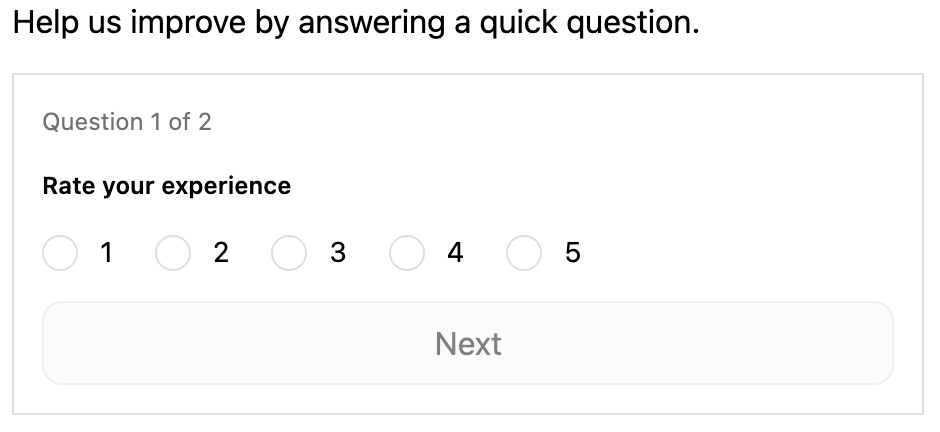
Surveys let you ask customers questions on the Thank You Page or Order Status Page. Use them to gather feedback, understand where customers came from, or run quick NPS checks. You can create multiple surveys per store, each with up to 10 fields.
How to set up
Section titled “How to set up”- Go to Surveys and click Create survey.
- Configure display settings (see below).
- Add Display Rules if needed.
- Click Save.
- In the Shopify checkout editor, add the Survey Form block to the thank you page or order status page.
Display settings
Section titled “Display settings”| Setting | Description |
|---|---|
| Survey Description | Shown to customers above the survey fields |
| Post-submit message | Message shown after the customer submits |
| Fields (up to 10) | One or more question fields |
| Free samples | Offer products customers can add to cart after completing |
| Conditions | Show survey only when cart conditions match |
Field types
Section titled “Field types”| Type | What it renders |
|---|---|
| NPS Survey | Rating scale: 1–5 stars or 1–10 scale with a question |
| Text Field | Open-ended free text input with a heading and label |
| Radio Button | Single-choice radio options with a heading |
| Multiple Options | Multi-select checkboxes with a heading |
| Select Option | Dropdown with a heading and placeholder text |
Each field also supports:
- Required toggle (default: on)
- Conditional field (fields 2+): only show this field if a previous field’s answer matches a set condition. Supports operators: equals, not equals, contains, not contains, greater than, less than.
- Surveys appear on the Thank You Page and/or Order Status Page, not on the checkout step itself.
- Up to 10 fields per survey. Field order is adjustable by drag-and-drop.
- Conditional fields let you branch the survey based on a previous answer.
Use cases
Section titled “Use cases”| Scenario | Question to ask |
|---|---|
| Attribution | ”How did you hear about us?” |
| Post-purchase NPS | ”How likely are you to recommend us?” (1–10 scale) |
| Product feedback | ”How satisfied are you with your order?” |
| Friction research | ”What almost stopped you from buying today?” |
| Customer segmentation | ”What best describes you?” with radio options |
Best practices
Section titled “Best practices”- Keep surveys to 1–2 questions. Completion drops sharply beyond that.
- Make the first question the most important, since many customers won’t reach question 2.
- Use conditional fields to follow up on specific answers without showing everyone every question.
- The “How did you hear about us?” question on every order is the most consistently valuable attribution data you can collect. Set it up permanently.
- Make questions optional when possible. Required fields reduce completion rate.
Survey Responses
Section titled “Survey Responses”Go to Revenue Analytics → Survey Responses to view submitted survey answers with their associated orders.