The Order Status Page Upsell shows a product offer on the order status page, the page customers visit when they check their order in their account. Unlike the thank you page, this is a return visit days or weeks after purchase, making it ideal for replenishment and re-engagement offers.
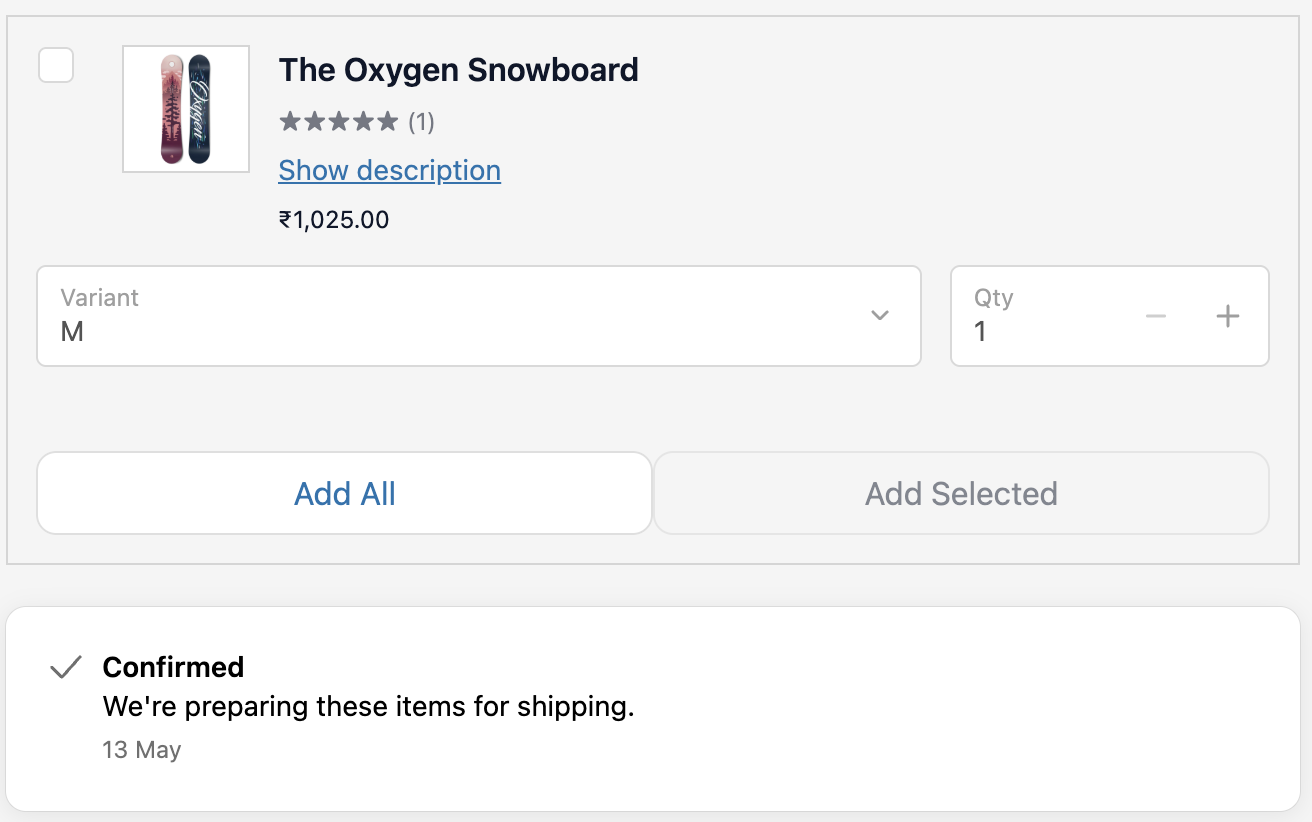
- Go to Order Status Page Upsell and click Create.
- Select Order Status Page Upsell as the type.
- For A/B testing, toggle Enable A/B Testing. A second product selection section appears for Variant B. All other display settings are common.
- Set Display Rules to target specific customers or orders.
- Select the product to offer:
- Manual: pick specific products or variants
- Automatic: the app selects based on what is in the order
- Collection: choose from a product collection
- Configure display settings (see below).
- Click Save.
- In the Shopify checkout editor, add the Upsell block to the order status page.
| Setting | Options |
|---|
| Upsell heading | Text shown above the offer |
| Campaign image | Optional image for the offer section |
| Layout | Horizontal carousel / Vertical carousel |
| Button style | Primary / Secondary |
| Variant selector | Allow customers to select a variant before adding |
| Show product description | Show a collapsible description under each product |
| Allow editing quantity | Let customers change the quantity before adding |
- Shown when the customer revisits the order status page, which can be days or weeks after the order was placed.
- Display Rules target based on what was actually purchased in the order.
| Scenario | Setup |
|---|
| Supplement or consumable: prompt a refill when customers check their order | Product condition matches the consumable |
| Apparel: show matching accessories to an ordered item | Product type or product tag condition |
| B2B: show related SKUs to purchasing managers reviewing orders | Customer is B2B condition |
| Loyalty: show an exclusive offer to repeat customers | Customer order count condition |
- The customer is task-focused (checking their order), not in buying mode. Keep the offer compact and make it feel useful rather than promotional.
- Use conditions to show the offer only for relevant orders, since a generic offer on this page converts poorly.
- A heading like “Running low? Reorder before you run out.” works better than a standard upsell headline.
- Pair with display rules targeting customers with 2+ orders for replenishment offers.
| Order Status Page Upsell | Thank You Page Upsell |
|---|
| Shown when customer revisits their order status (days or weeks later) | Shown immediately after checkout completes |
| Best for replenishment, loyalty, and re-engagement | Best for quick follow-up offers while excitement is high |
| Lower urgency, customer is checking order and not in buying mode | Higher urgency, customer just purchased and is still engaged |
