Mailchimp Integration
Step 1: Set up your Mandrill API key with Buy Again & Reorder Reminder
Section titled “Step 1: Set up your Mandrill API key with Buy Again & Reorder Reminder”Open Mailchimp: Email & SMS reorder reminders from Shopify admin. Click on Continue to Mailchimp button. For transactional email, you can manage your Mandrill account’s API keys from your account settings. Click here to open Mandrill settings.
1: Generate API Key
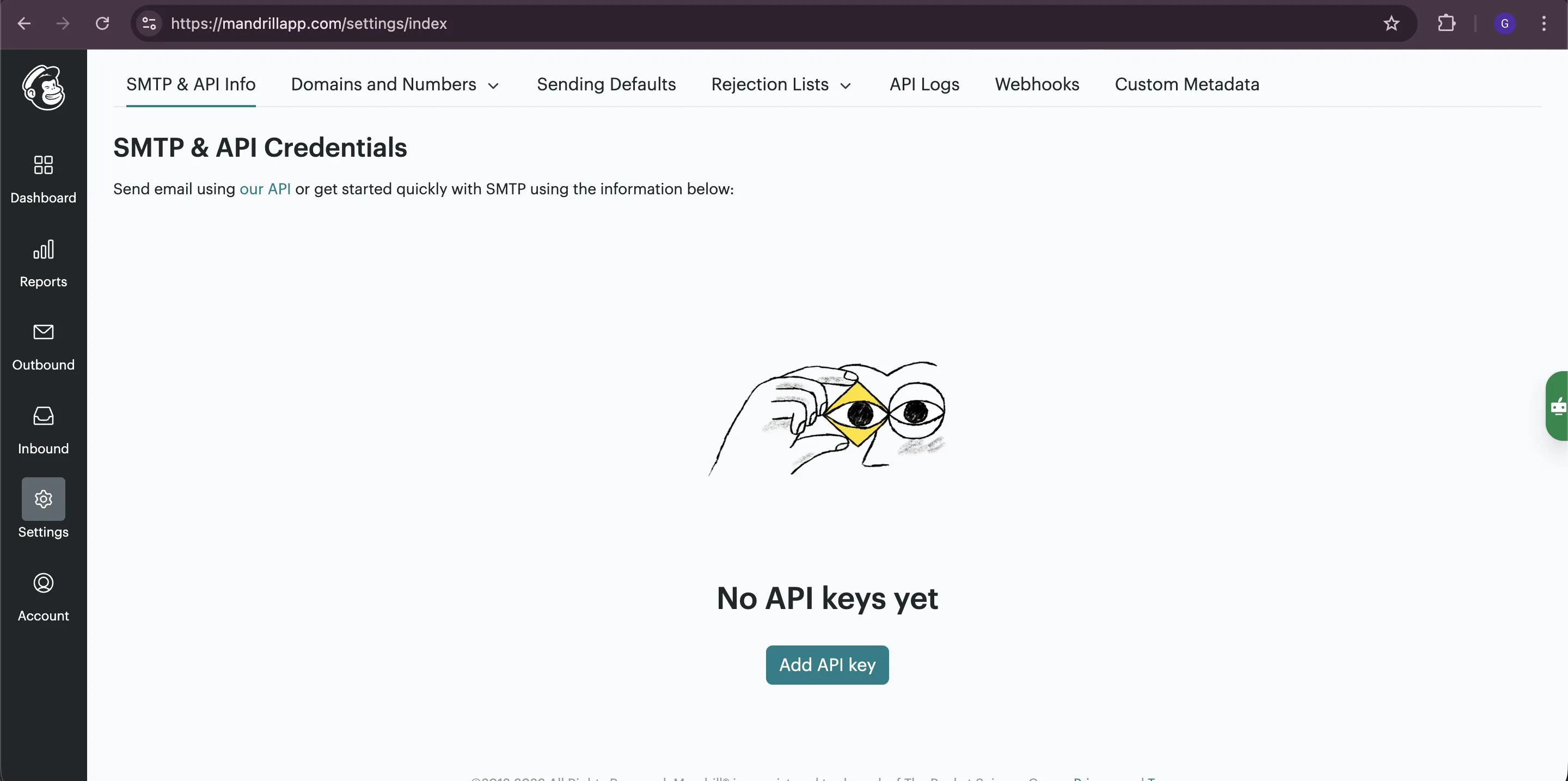
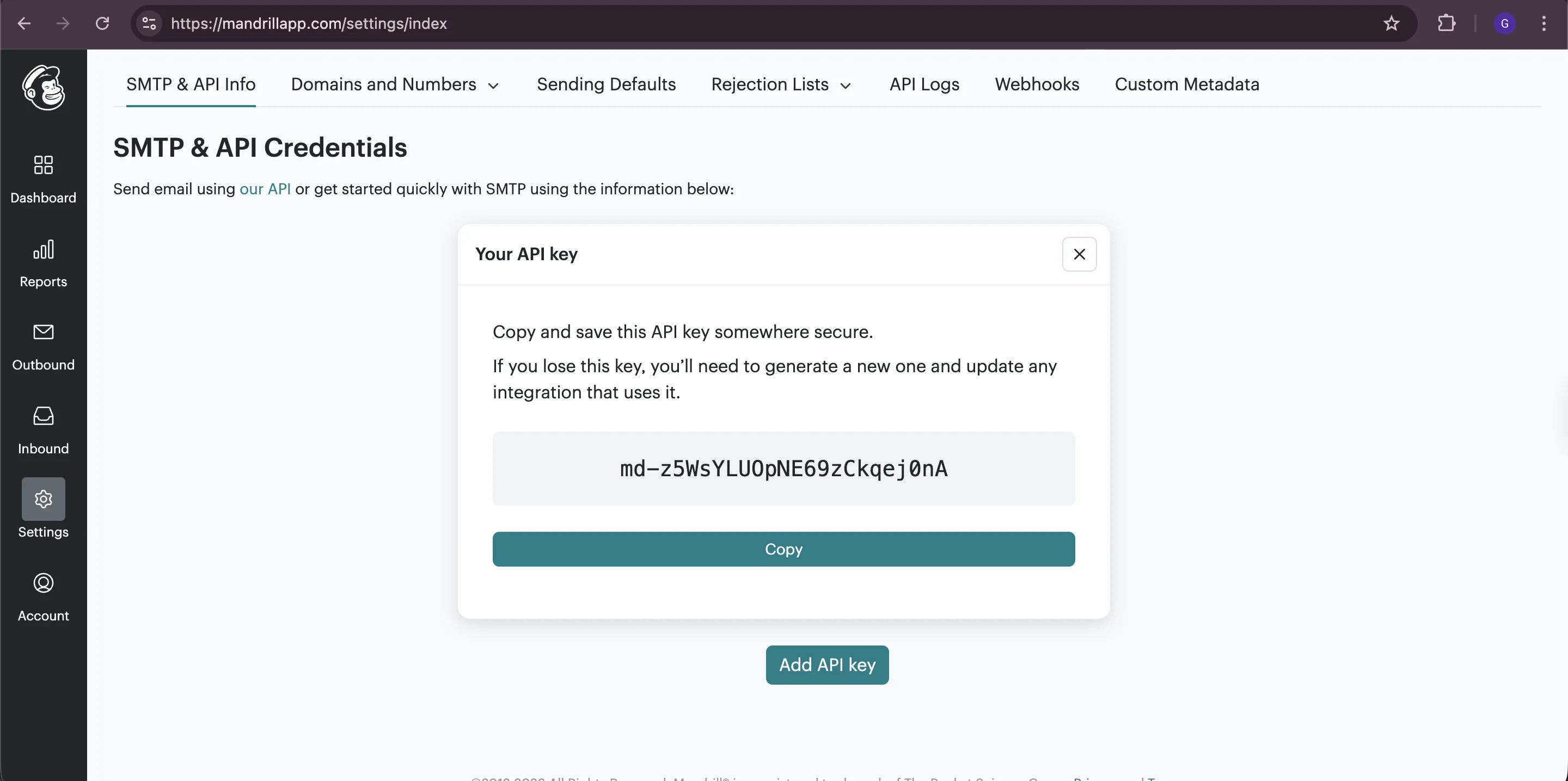
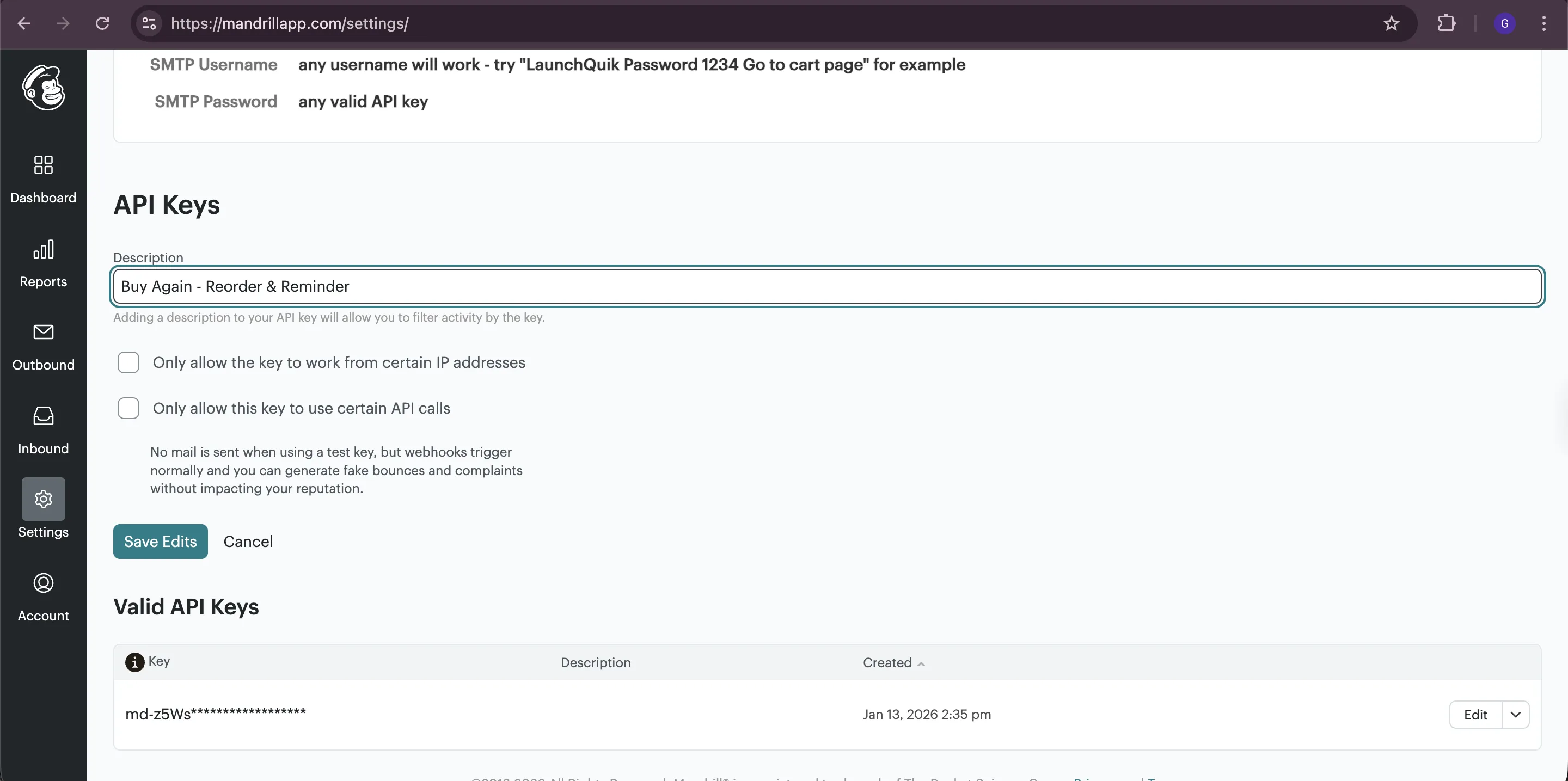
Section titled “1: Generate API Key”- Click on SMTP & API Info tab and click on Add API Key. Copy the API key generated immediately as you won’t be able to see it again.
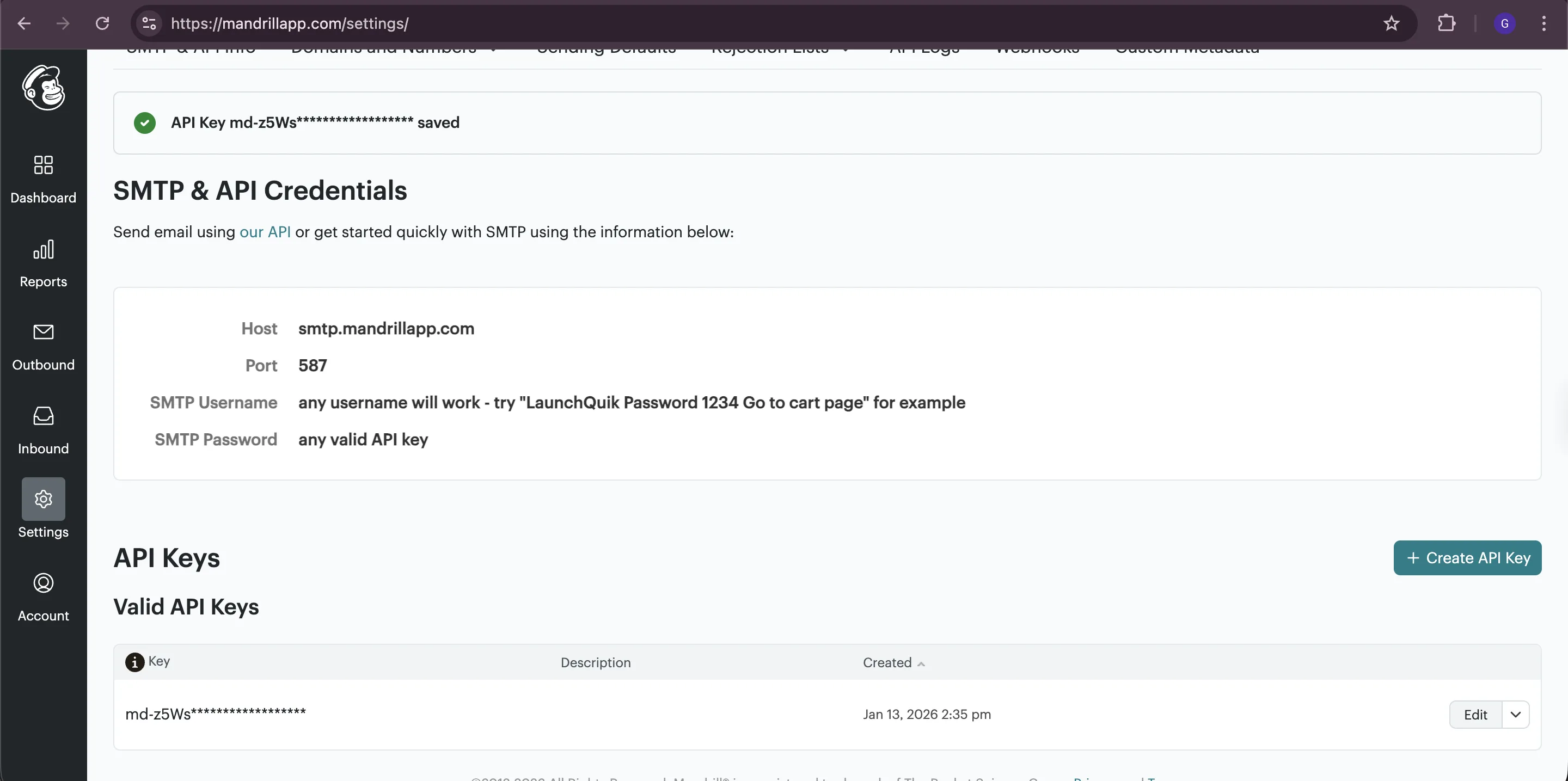
- Once the API key is generated, click on Edit and name the API key as Buy Again Reorder Reminder and click on Save Edits.
2: Configure Sending Domain
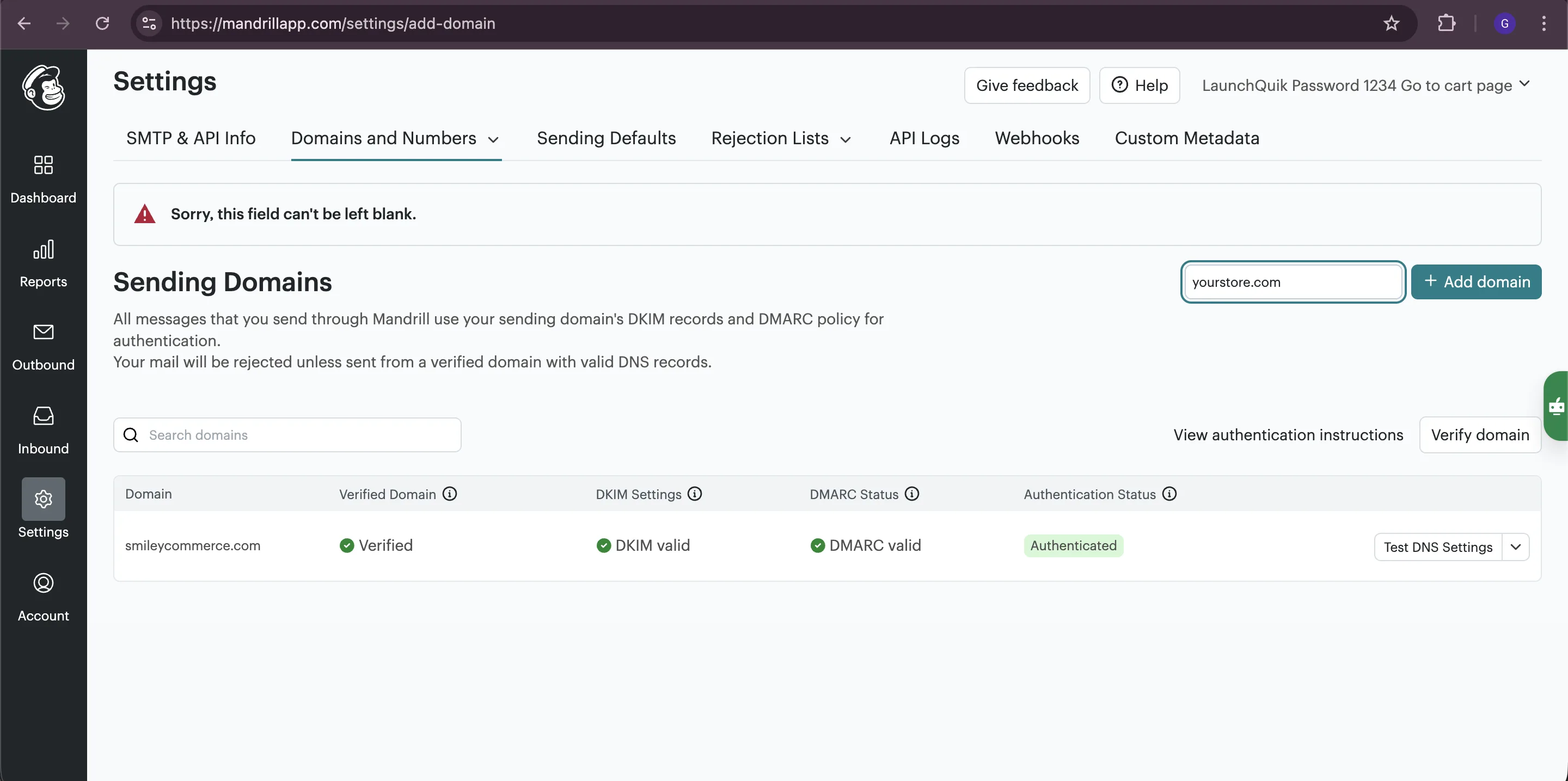
Section titled “2: Configure Sending Domain”- Click on Domains and Numbers Tab. Enter domain and click on + Add domain.
- Ensure your sending domain is verified and properly configured. This is required for sending reorder reminder emails.
3: Integrate Mandrill with Buy Again & Reorder Reminder
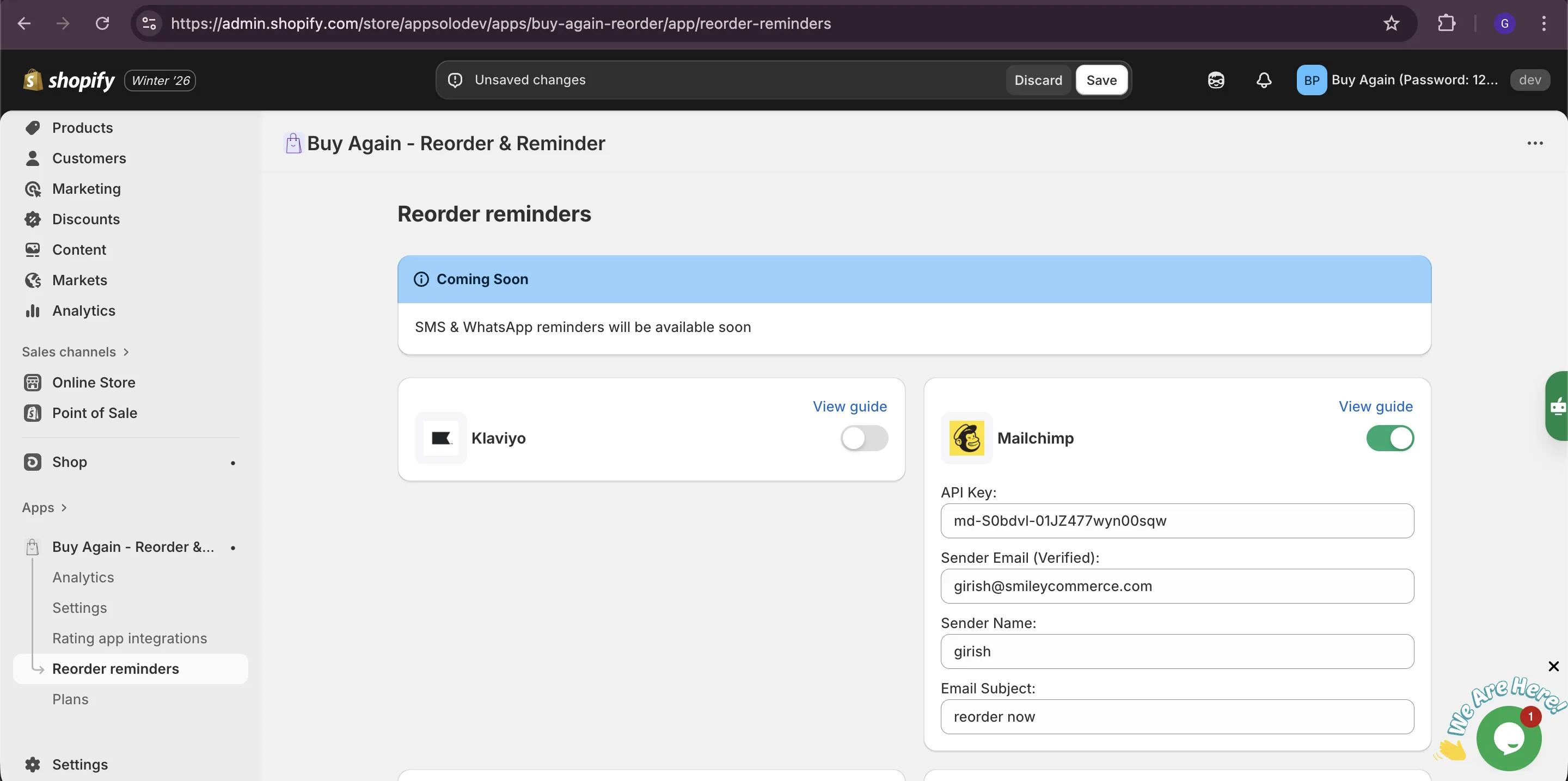
Section titled “3: Integrate Mandrill with Buy Again & Reorder Reminder”Copy the Mandrill API key you generated and paste it into the Buy Again & Reorder Reminder app settings. Also, enter the verified sender email, sender name & Email subject.
Step 2: Create email template in Mandrill for reorder reminders
Section titled “Step 2: Create email template in Mandrill for reorder reminders”1: Design Email Template
Section titled “1: Design Email Template”We have already created a reorder email template for you with the necessary reorder data. If you don’t wish to change the design, you can skip to Step 3.
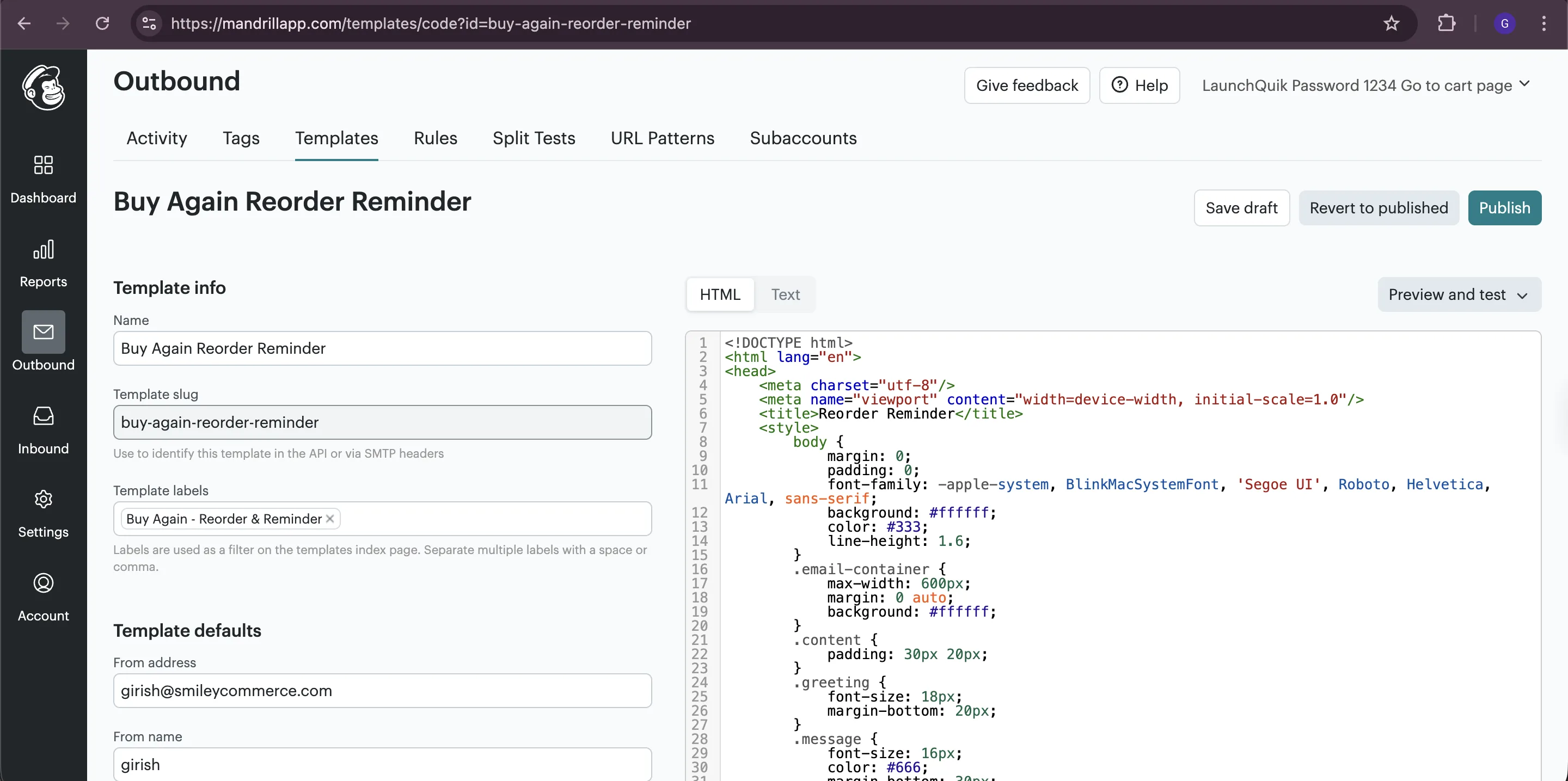
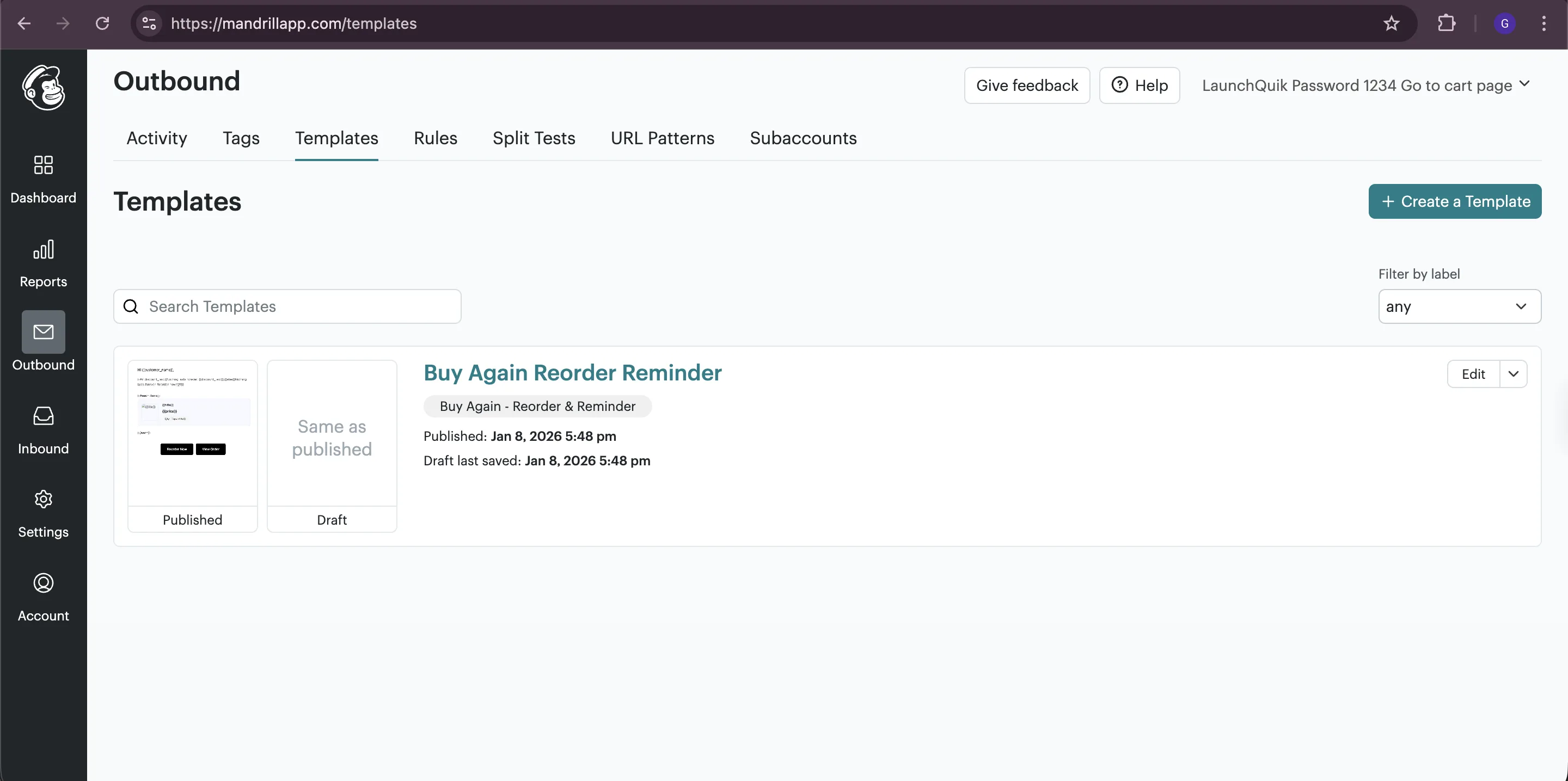
- In your Mandrill dashboard, click on Outbound and go to Templates tab and you will find email template with name Buy Again Reorder Reminder.
- Use the template editor to design your reorder reminder email.
3: Save and Publish
Section titled “3: Save and Publish”- Click Publish when your template design is complete.
- Note the template name & slug for your reference.