
Buy Again - Reorder Popup
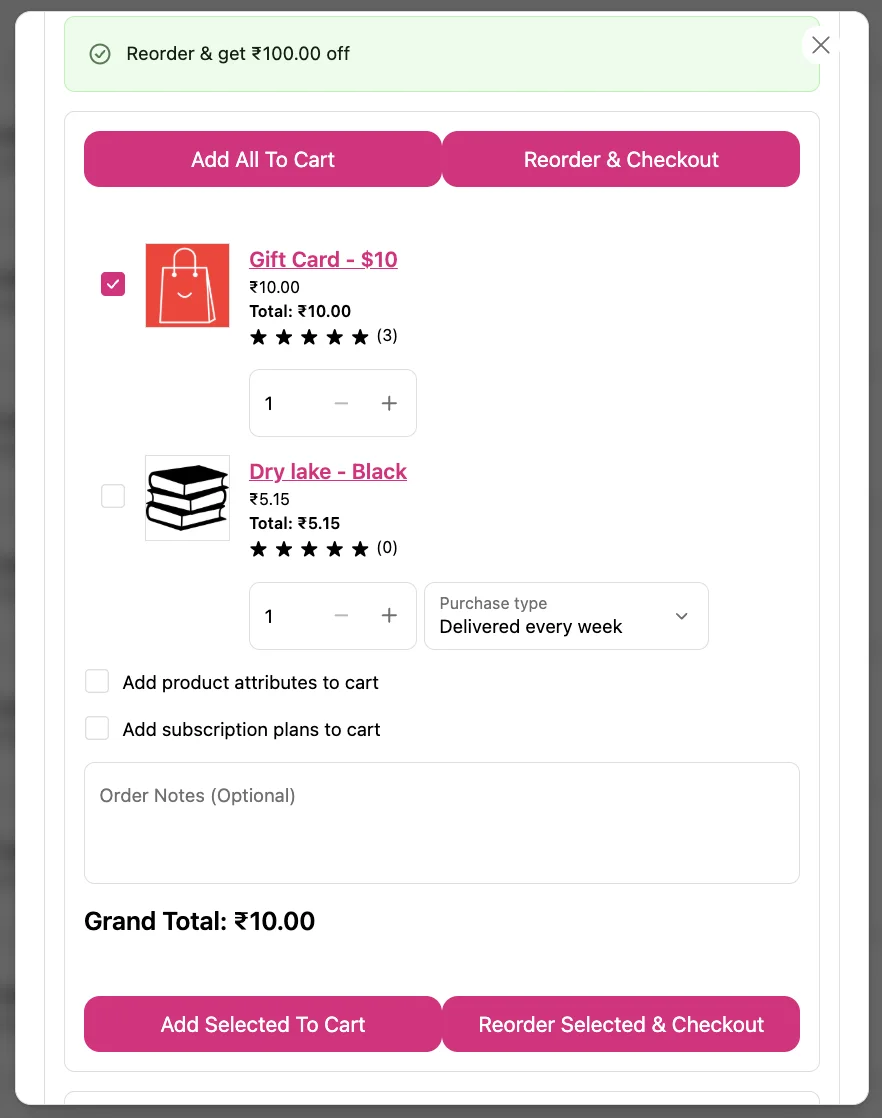
The Buy Again - Reorder Popup adds a Reorder button to each order status page and on the order history page in a new customer account. Clicking it opens a popup where customers can select products, edit quantities, and add them to the cart in one click along with line item properties and reorder discounts.
Requirements
Section titled “Requirements”- New customer accounts must be active.
- Customer must be logged in with at least one previous order.
Where It Appears
Section titled “Where It Appears”A Reorder button appears on each order in the order history page and on the order status page inside the new customer account. Clicking it opens the reorder popup.
How to Enable
Section titled “How to Enable”- Go to Shopify Admin → Settings → Customer accounts and confirm New customer accounts is active
- Open the app Dashboard and click Open Order list (Reorder popup) editor
- Click Add app block
- Find Buy Again Reorder Popup and add both: the menu item and the modal
- Click Save
What Customers See
Section titled “What Customers See”The popup shows all items from that order with:
- Products: product image, name, variant, and quantity from the original order
- Quantity input: customers can edit quantities before adding to cart
- Select items: customers can select specific items or add all at once
- Add selected to cart: adds only selected items to the cart
- Add all to cart: adds everything from the order at once
- Subscription plans: items can be added with a selling plan if your products support subscriptions
- Line item properties: carried over from the original order (checkbox in the popup)
- Order notes: customers can add a note to their reorder
- Discount: reorder discount from Settings applied automatically
- Customer-defined reminder: customers can set their own reminder schedule from within the popup