
Klaviyo Integration
Step 1: Set up your Klaviyo API key with Buy Again & Reorder Reminder
Section titled “Step 1: Set up your Klaviyo API key with Buy Again & Reorder Reminder”You can manage your Klaviyo account’s API keys from your account settings.
1: Create API keys
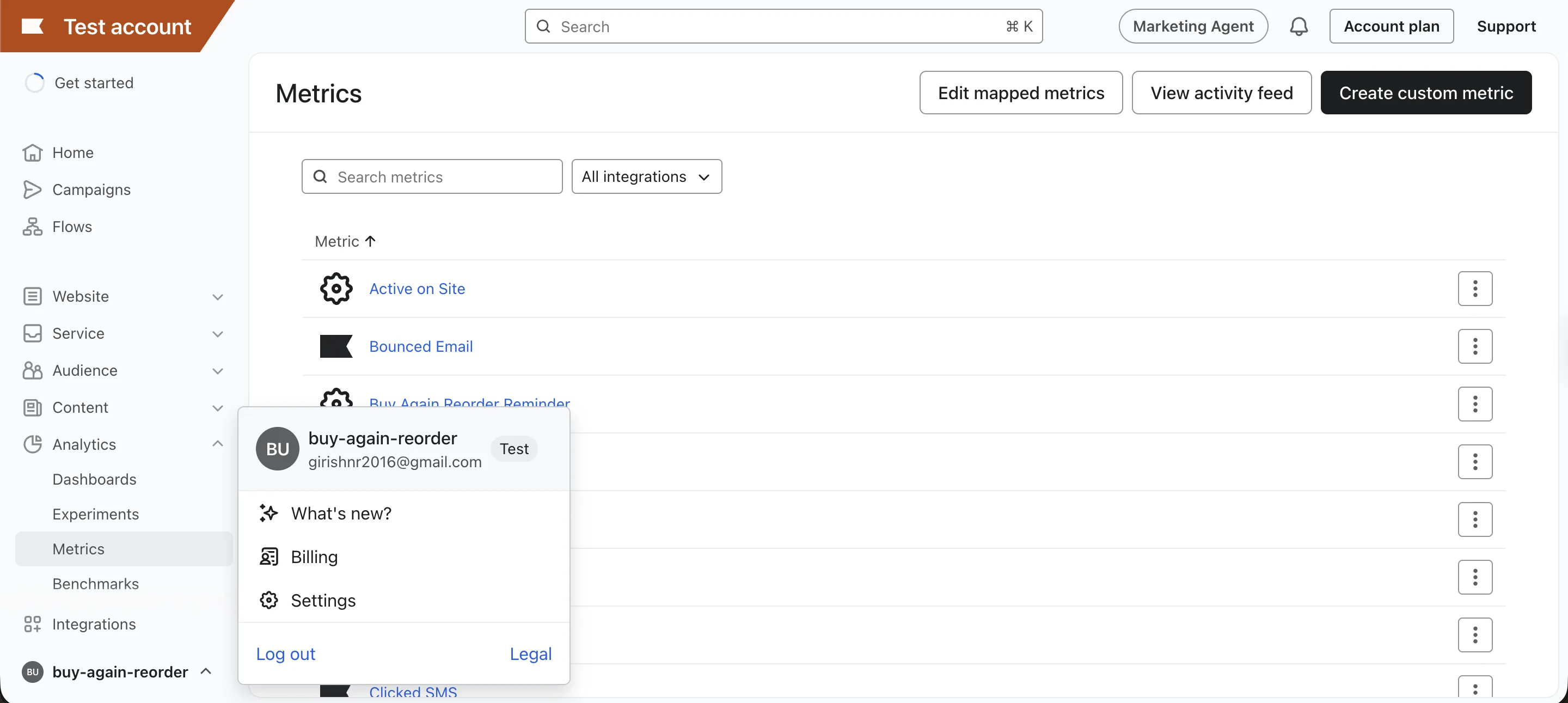
Section titled “1: Create API keys”- Click your account name in the bottom left and then click on Settings.
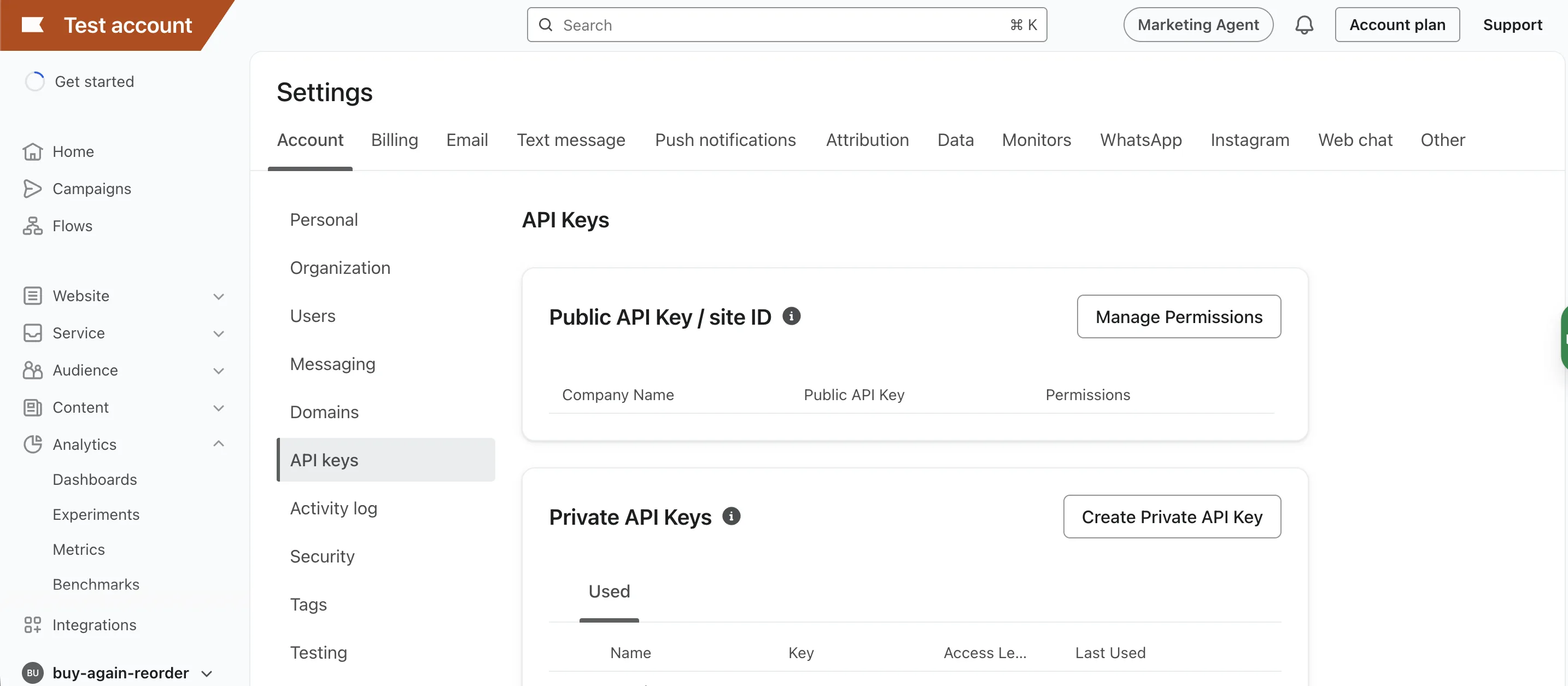
- Click on API keys tab and Click on Create Private API Key.
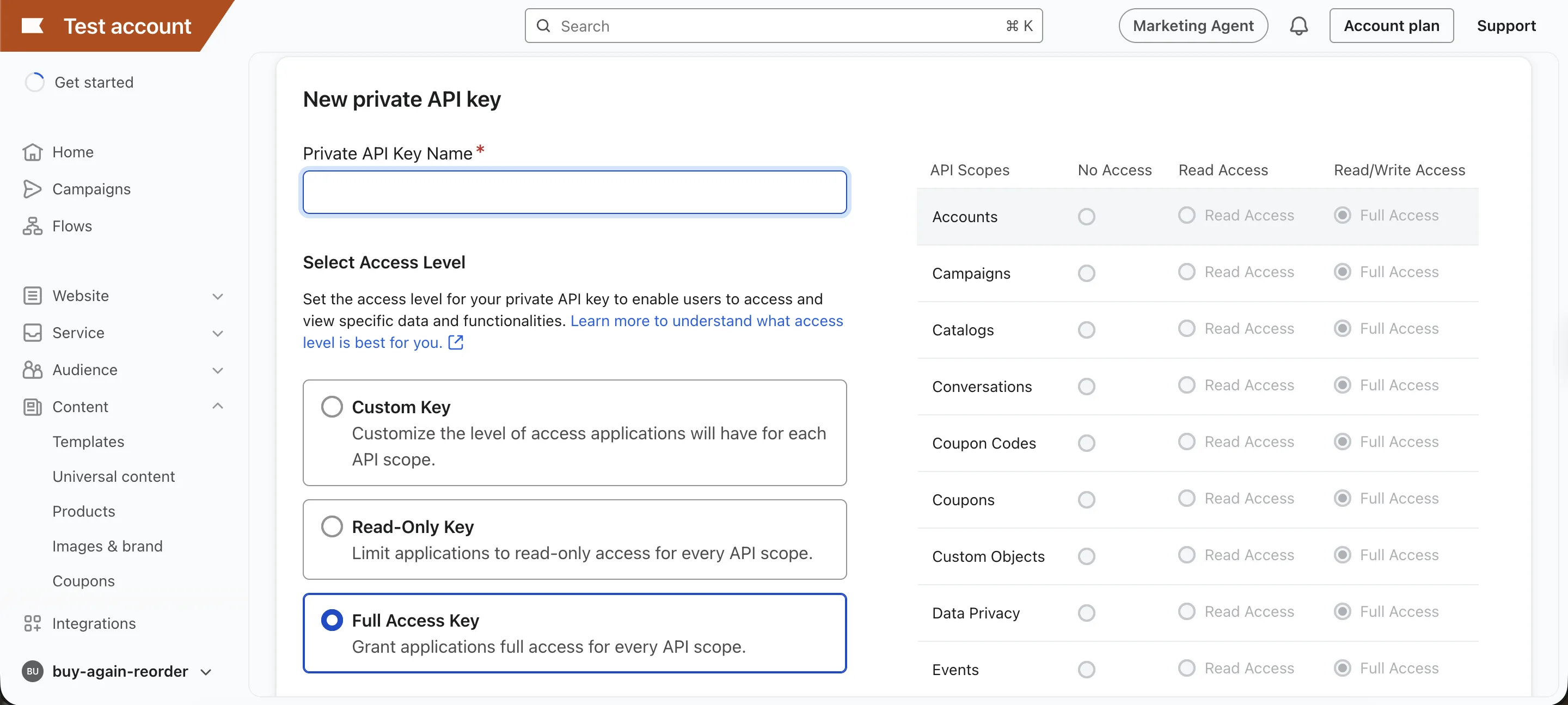
- Choose Full access key option in the ‘Select access level’ section.
- Name the API key and click on Create.
We recommend saving the API key with ‘Buy Again & Reorder Reminders Key’ so that it becomes clear that this key is used by Buy Again & Reorder Reminders App.
2: Review double Opt-In Settings
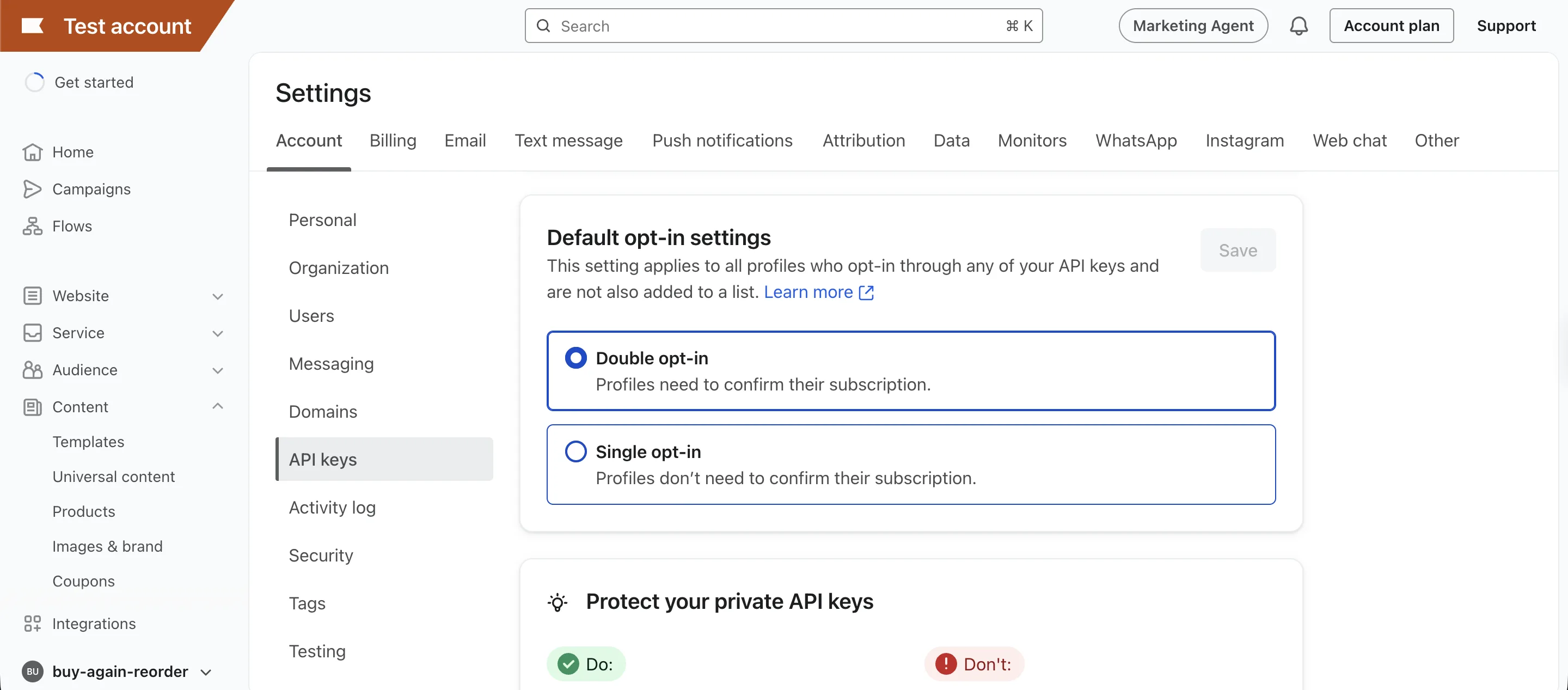
Section titled “2: Review double Opt-In Settings”- Double Opt-In Enabled: If you’ve enabled double opt-in, customers who agree to marketing consent will receive a confirmation message via Email or SMS from Klaviyo. They must confirm their subscription before a new profile is synced to Klaviyo, along with subscription to SMS or Email & SMS reorder reminders channels.
- Double Opt-In Disabled: If you disable double opt-in, customers will not need to confirm their subscription. In this case, customer data will be synced to Klaviyo without explicit confirmation.
For more details and to adjust your settings, review the double opt-in settings in your Klaviyo account.
3: Integrate Klaviyo with Buy Again & Reorder Reminder
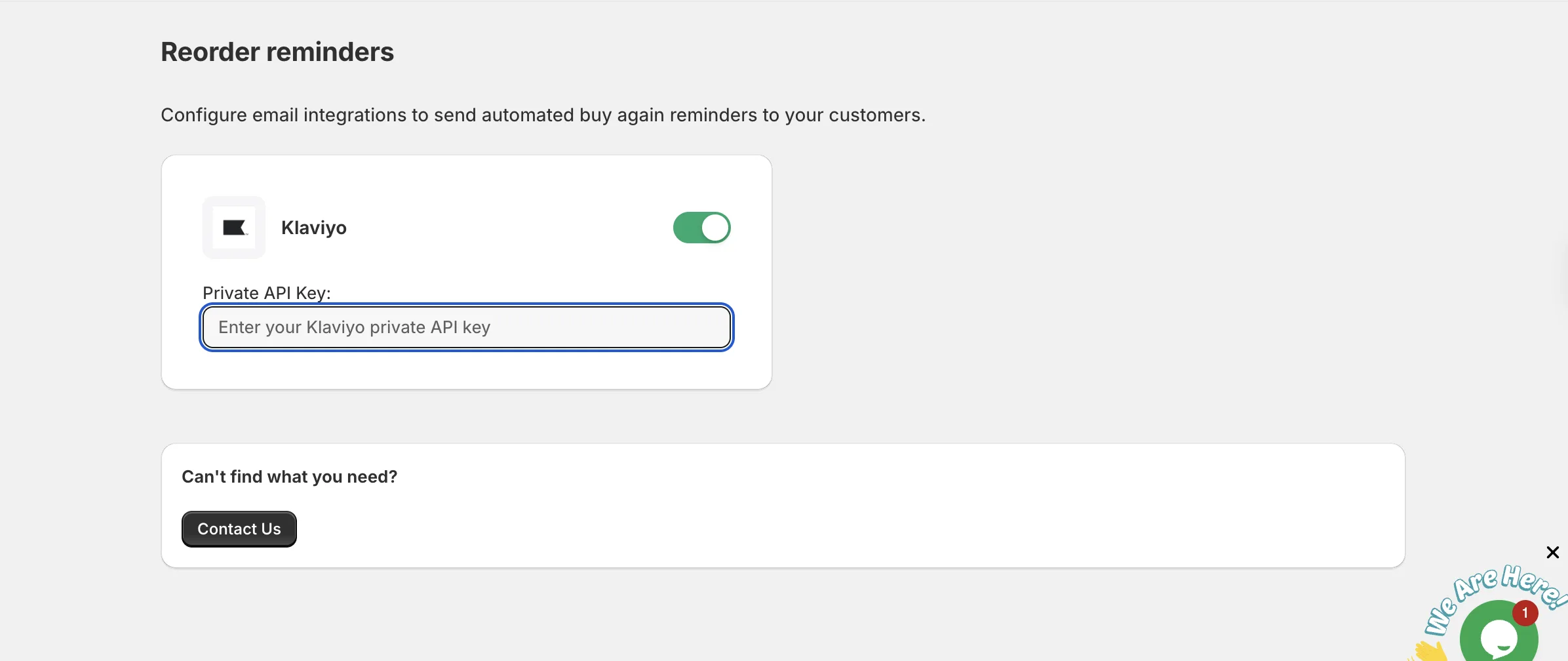
Section titled “3: Integrate Klaviyo with Buy Again & Reorder Reminder”To enable reorder reminders, copy the Klaviyo API key that you created above and paste it in Buy Again & Reorder Reminder app’s Reorder reminders settings.
Step 2: Create a flow in Klaviyo to send reorder reminders
Section titled “Step 2: Create a flow in Klaviyo to send reorder reminders”1: Create Flow
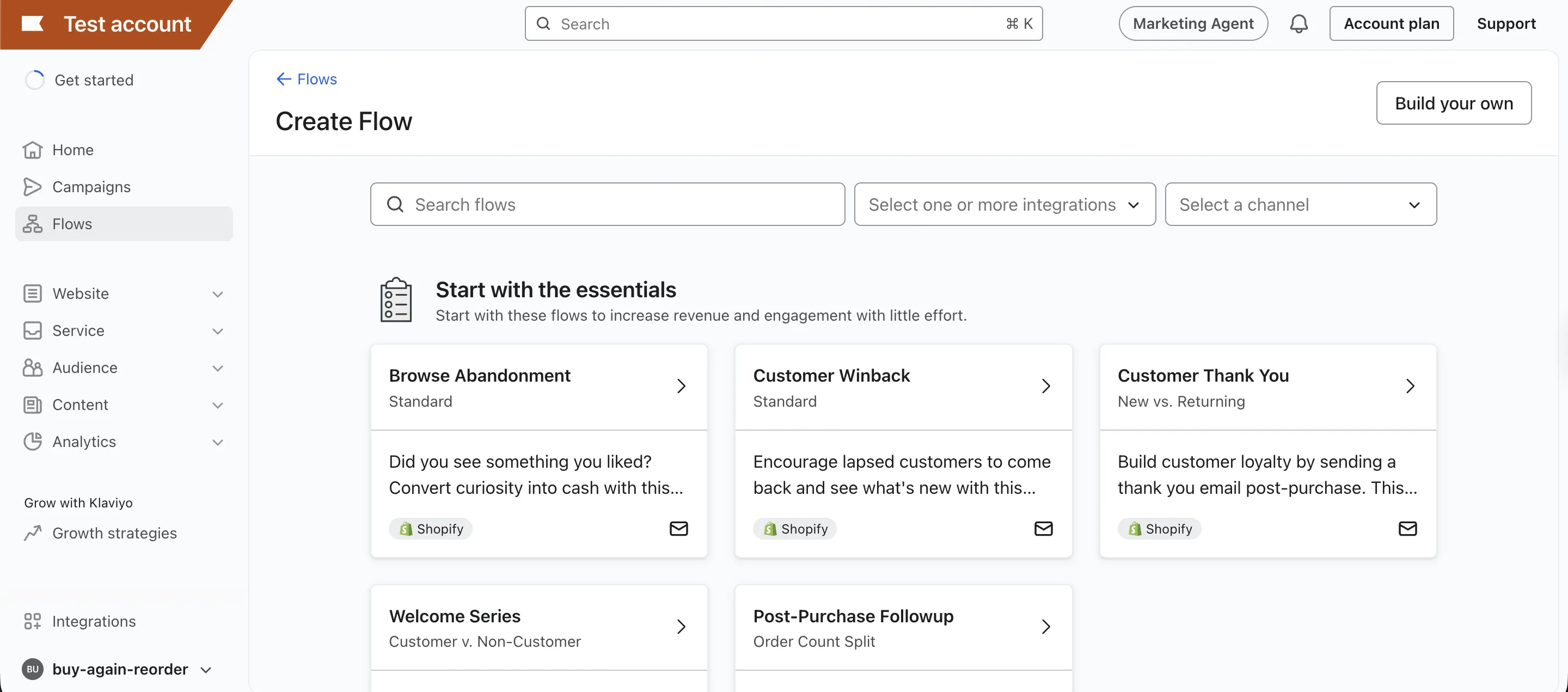
Section titled “1: Create Flow”- Log in to your Klaviyo account and in the left sidebar, click on Flows.
- In the top right corner, click on the Create Flow button.
2: Choose Flow Type
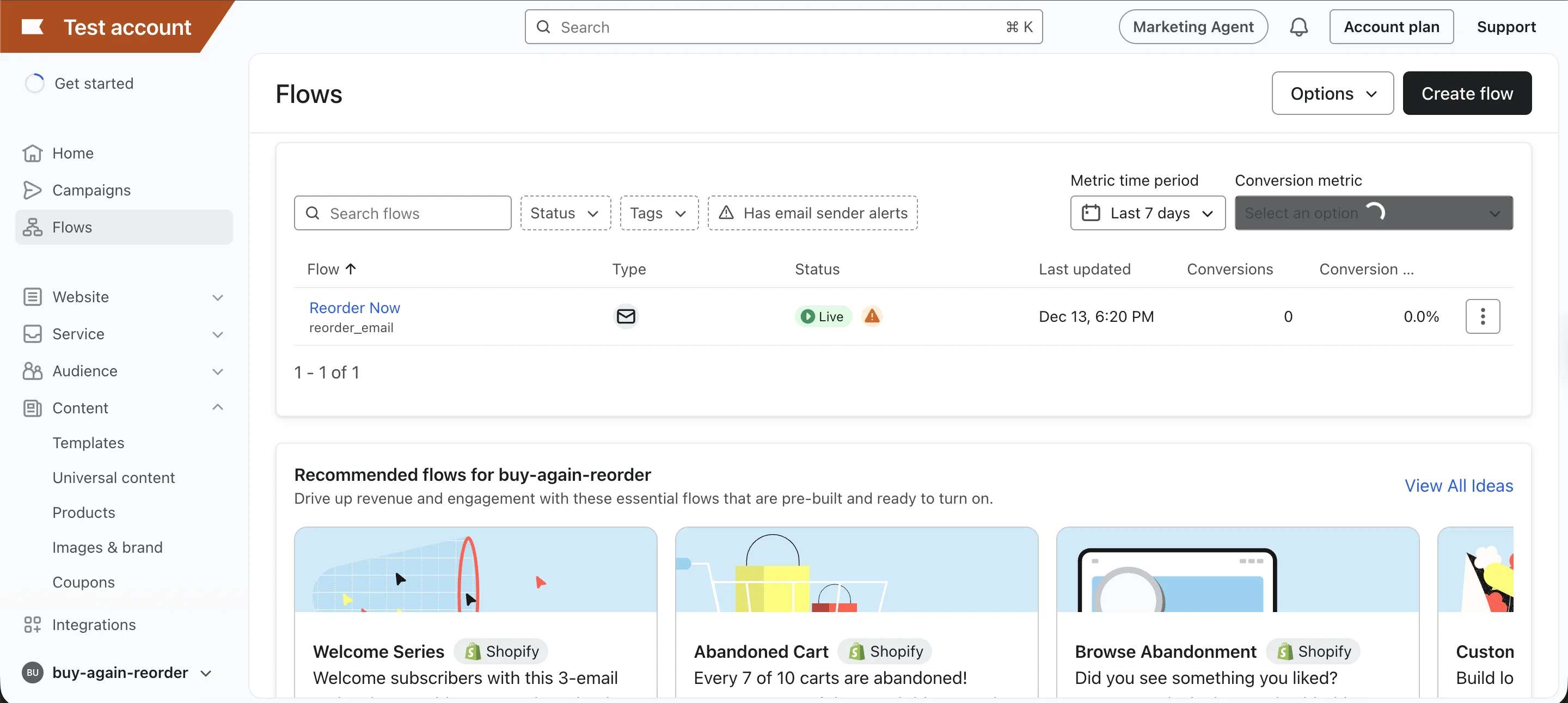
Section titled “2: Choose Flow Type”- After clicking on Create Flow, you’ll see several flow options. Click on Build your own on the top right corner to start from scratch.
3: Name Your Flow
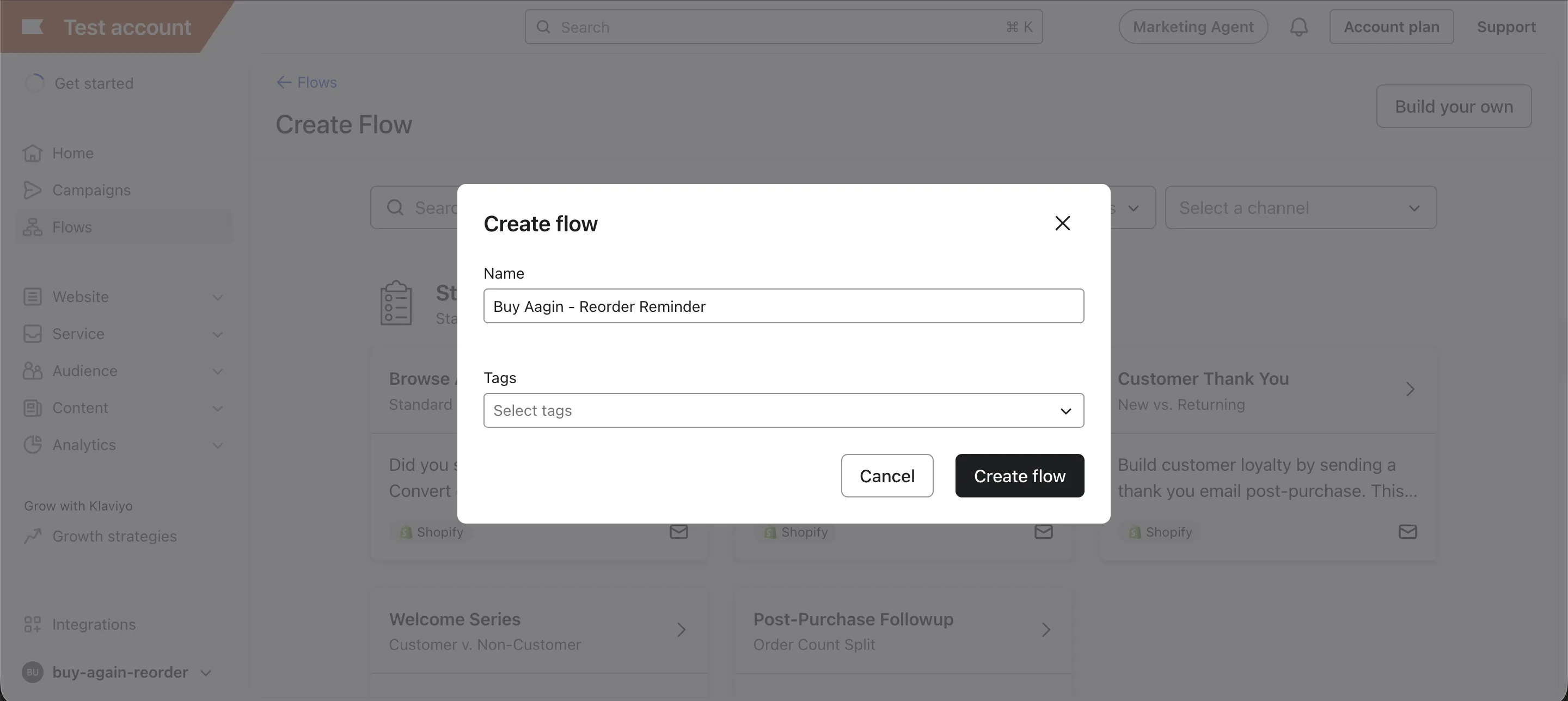
Section titled “3: Name Your Flow”- A modal window will appear, asking for a Flow Name and optional Tags. In the Flow Name field, enter Buy Again & Reorder Reminder.
- After entering the name, click on the Create Flow button at the bottom of the modal.
- The system will generate a new workflow page with an empty trigger node at the top.
Step 3: Configure your Klaviyo flow to send reorder reminders
Section titled “Step 3: Configure your Klaviyo flow to send reorder reminders”1: Set up the Trigger
Section titled “1: Set up the Trigger”- Click on the “Select a trigger” button in the empty trigger node.
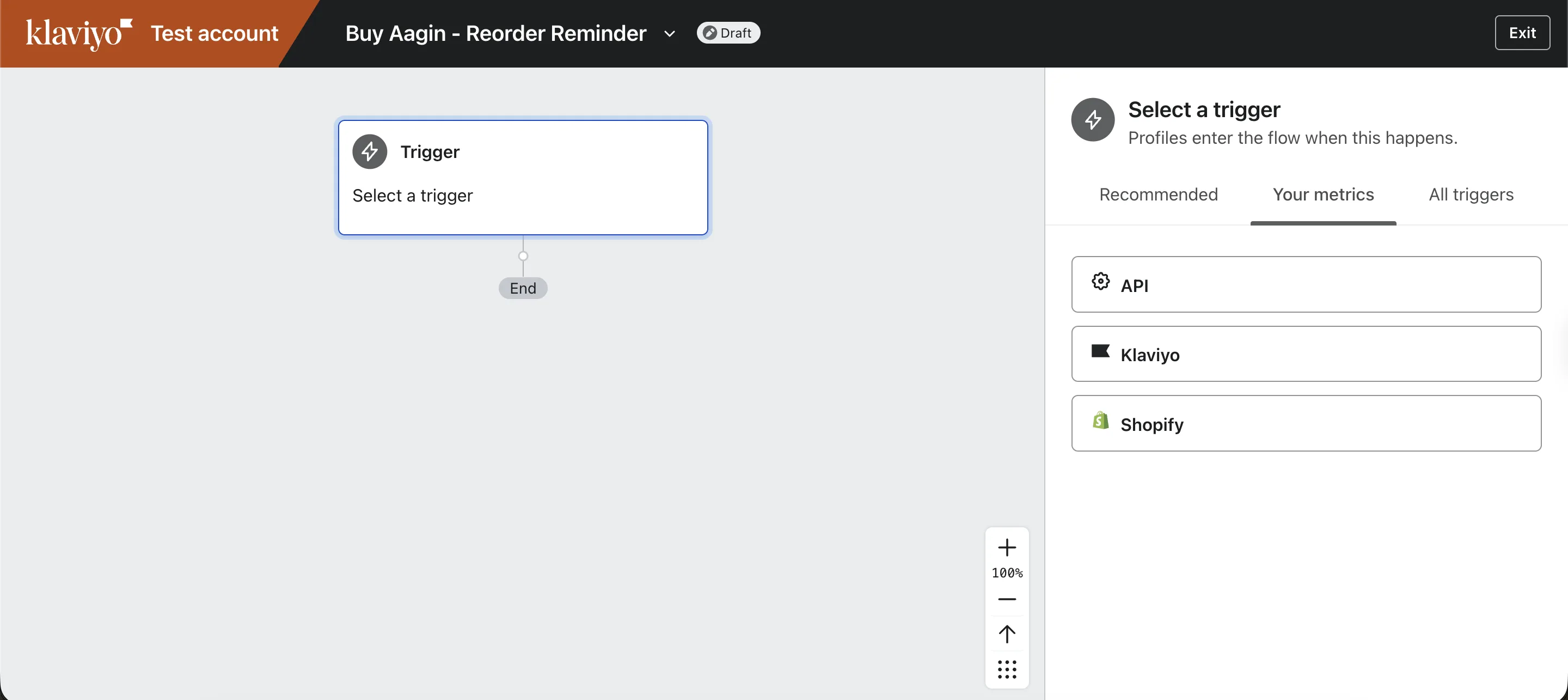
- In the right sidebar, you’ll see several trigger options. Under “Your Metrics”, find “API” and click on that to expand it.
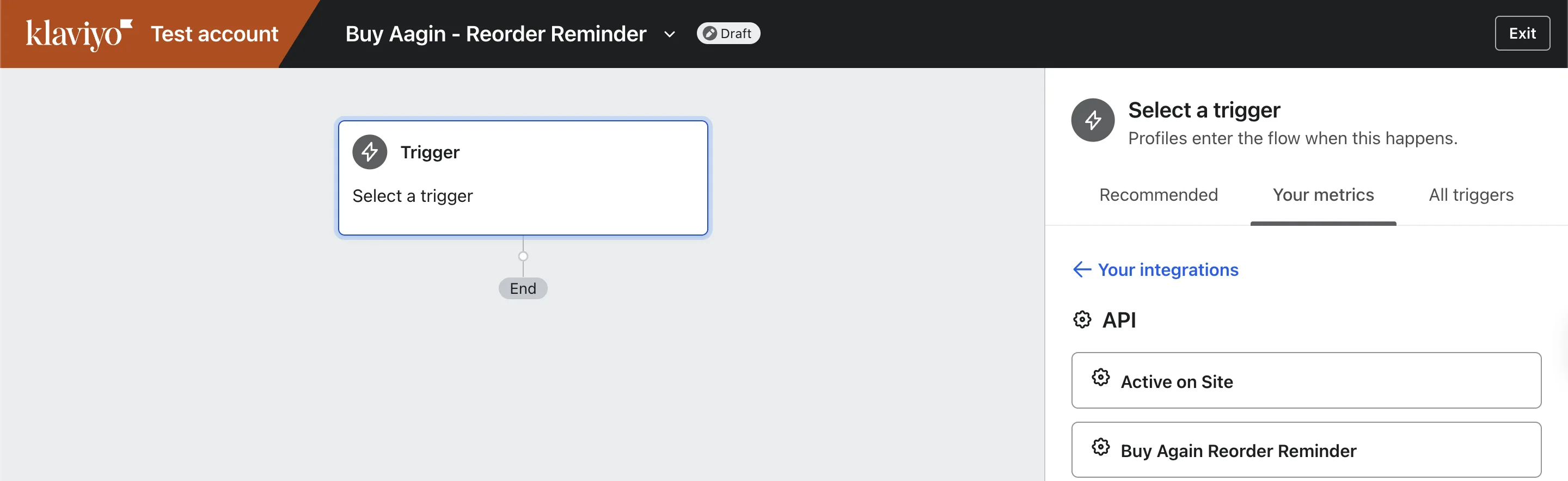
- In the list of API metrics, locate and select “Buy Again Reorder Reminder”.
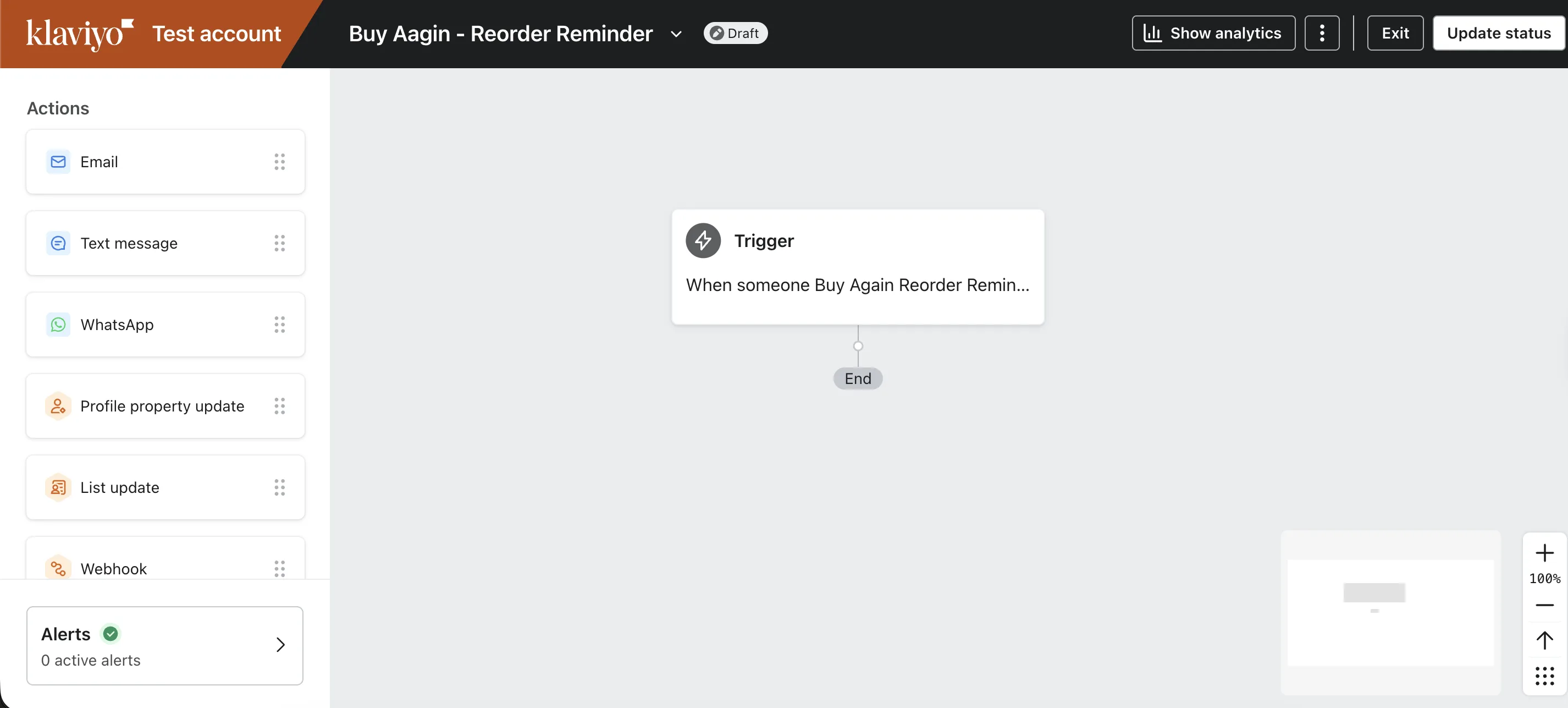
- After selecting the correct trigger, click the “Save” button at the bottom of the sidebar.
- A confirmation dialog box will appear, asking you to confirm your trigger selection.
- Carefully review the selected trigger — it should show “Buy Again Reorder Reminder”.
- If everything looks correct, click the “Confirm and Save” button.
2: Add Email Action to Your Flow
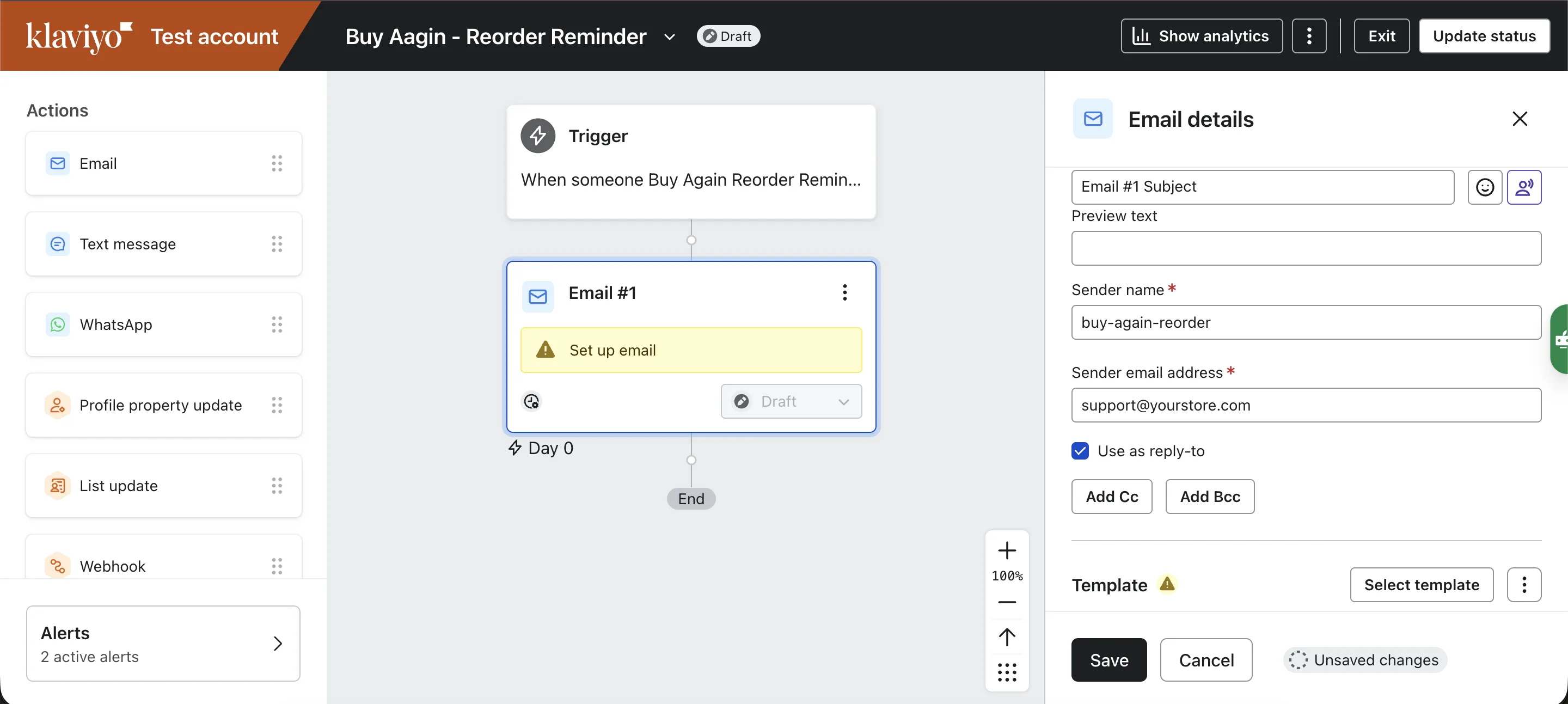
Section titled “2: Add Email Action to Your Flow”- Locate the list of actions on the left sidebar. From the list of actions, select “Email”. Drag and drop the Email action into the workflow, connecting it to the trigger.
- Once the Email action is placed, click on the Email action in the workflow to open its settings in the right sidebar.
- In the Email settings, you can edit Subject line & Preview text that informs customers about reorder reminders.
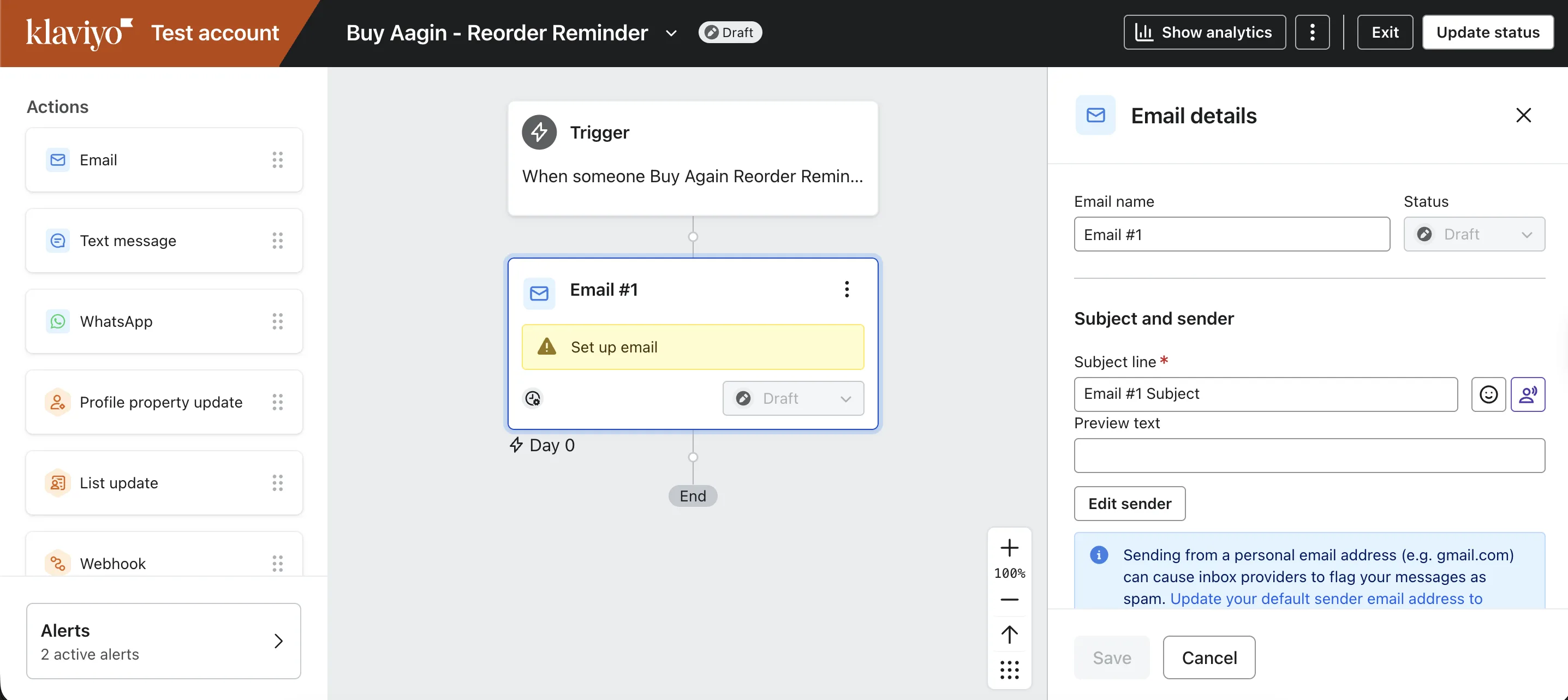
- Click on Edit sender to set the sender name and email address for the reorder reminder emails. Choose an appropriate sender identity for your brand.
4: Select Template
Section titled “4: Select Template”- In the Email action settings, locate and click on the “Select Template” button.
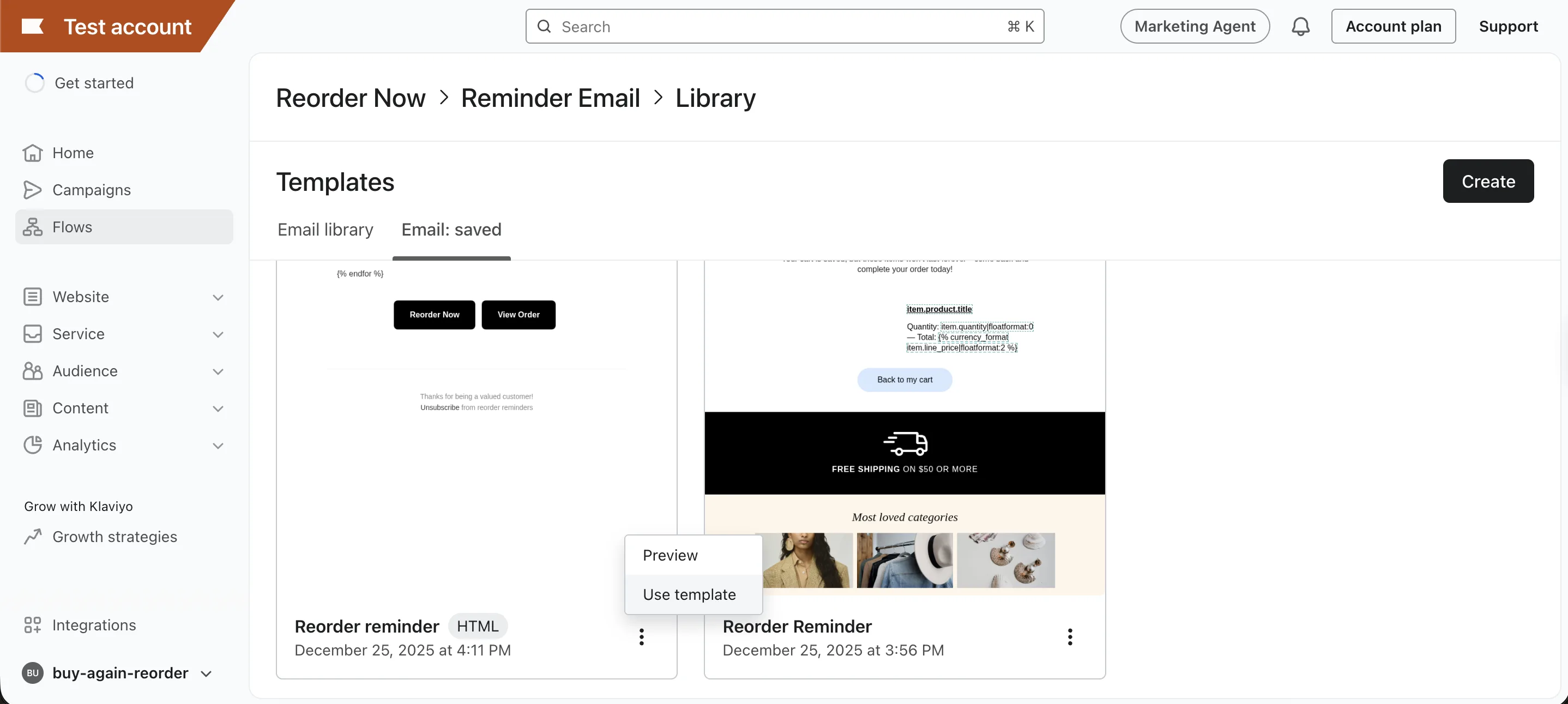
- A new window will open, showing various templates under the Email Library tab and the Saved Emails tab. Click the Email: saved tab.
- Navigate to the “Saved Templates” tab at the top of this window.
- Look for the template generated by Buy Again & Reorder Reminders. It should be named something like “Buy Again - reorder reminder template”.
- Click on the “Use template” button.
You will see Editor and Preview tab:
- Editor: If you want to customize the template, customise it first and then click on the Save button.
- Preview: Preview email template.
In the top right corner, click the Done button.
5: Activate the Flow
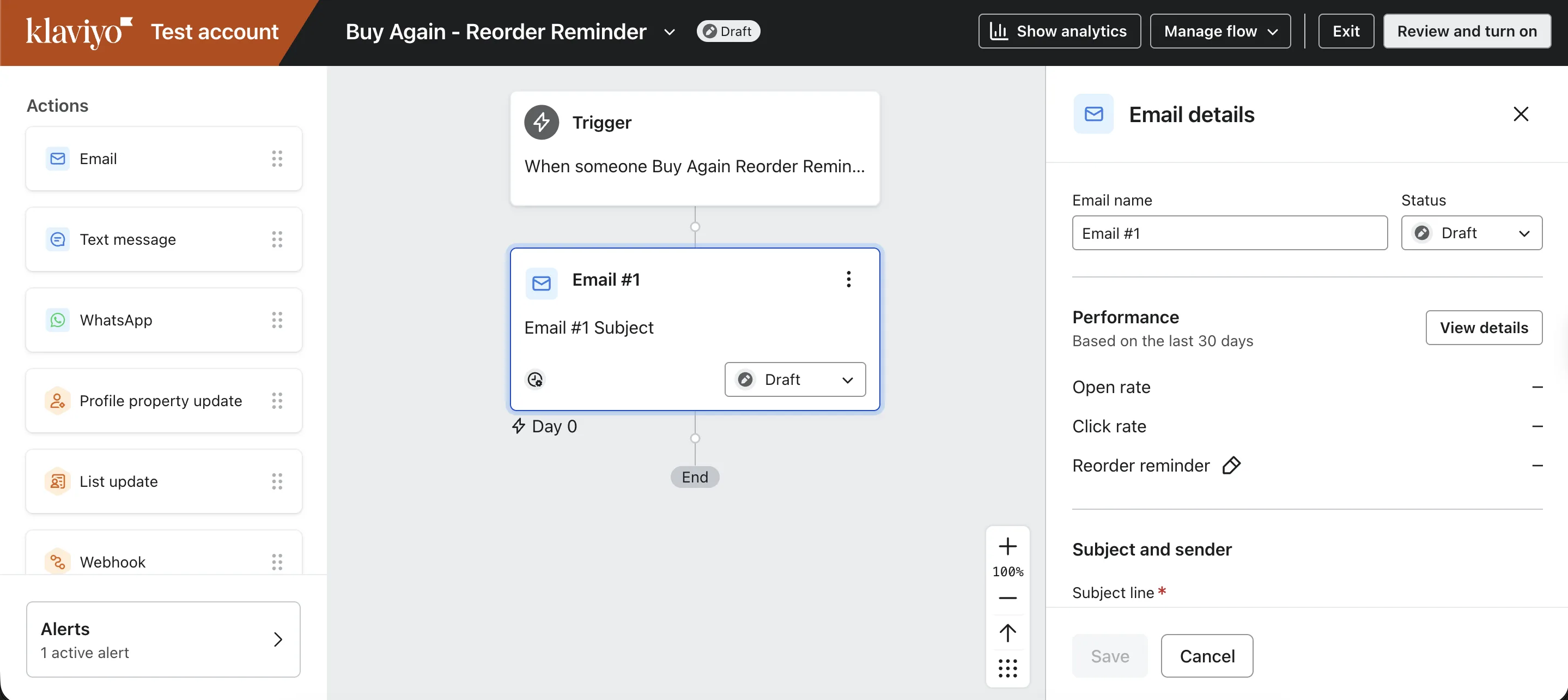
Section titled “5: Activate the Flow”- Once you have finished setting up the flow, locate the Review and Turn On button in the top right corner of your flow editor. This action will open a modal.
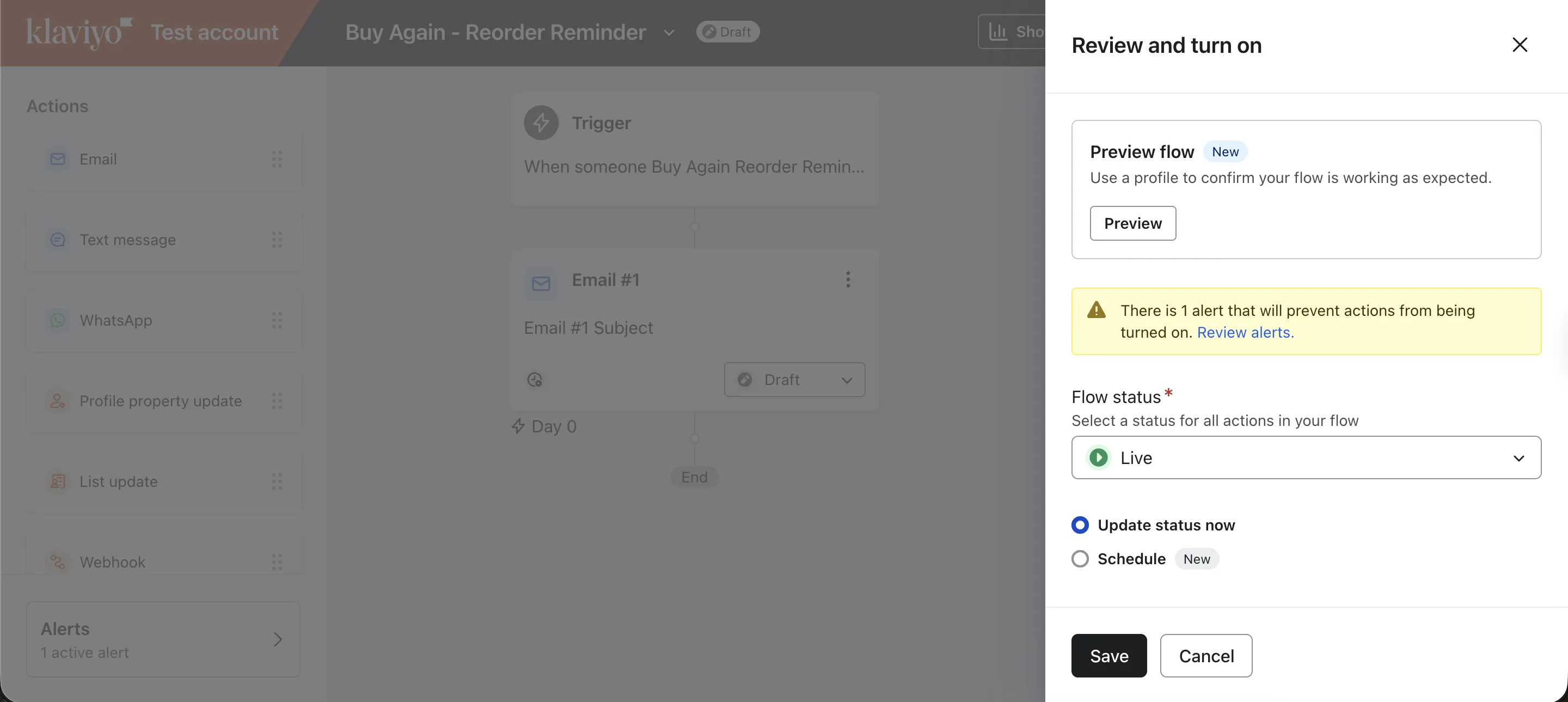
- In the modal, you will see a dropdown menu for selecting the flow status. From the dropdown, choose Live. This setting will activate your flow and allow it to start sending reorder reminders to your loyal customers.
- Finally, click on the Save button at the bottom of the modal to activate the flow.
Congratulations! You have now successfully set up reorder reminders flow in Klaviyo. Your customers will automatically receive reorder reminders whenever they choose to. This process will improve customer retention, increase repeat sales and customer LTV.