
Custom Email Service Provider
If you are not using Klaviyo, Omnisend, Mailchimp, or Brevo, then you can use a custom email service provider. This lets you send branded reorder reminder emails from your own domain without needing a separate ESP account.
How It Works
Section titled “How It Works”You verify your sending domain inside the app, then build your email template. Emails are sent directly from your domain, so customers see your brand, not a third-party sender.
Step 1 – Enter Your Sending Domain
Section titled “Step 1 – Enter Your Sending Domain”- Find the Custom Email section on the Reorder Reminders page
- Enter your From Domain, e.g.
yourbrand.com - Optionally enter a From Email, e.g.
hello@yourbrand.com - Click Get DNS Records
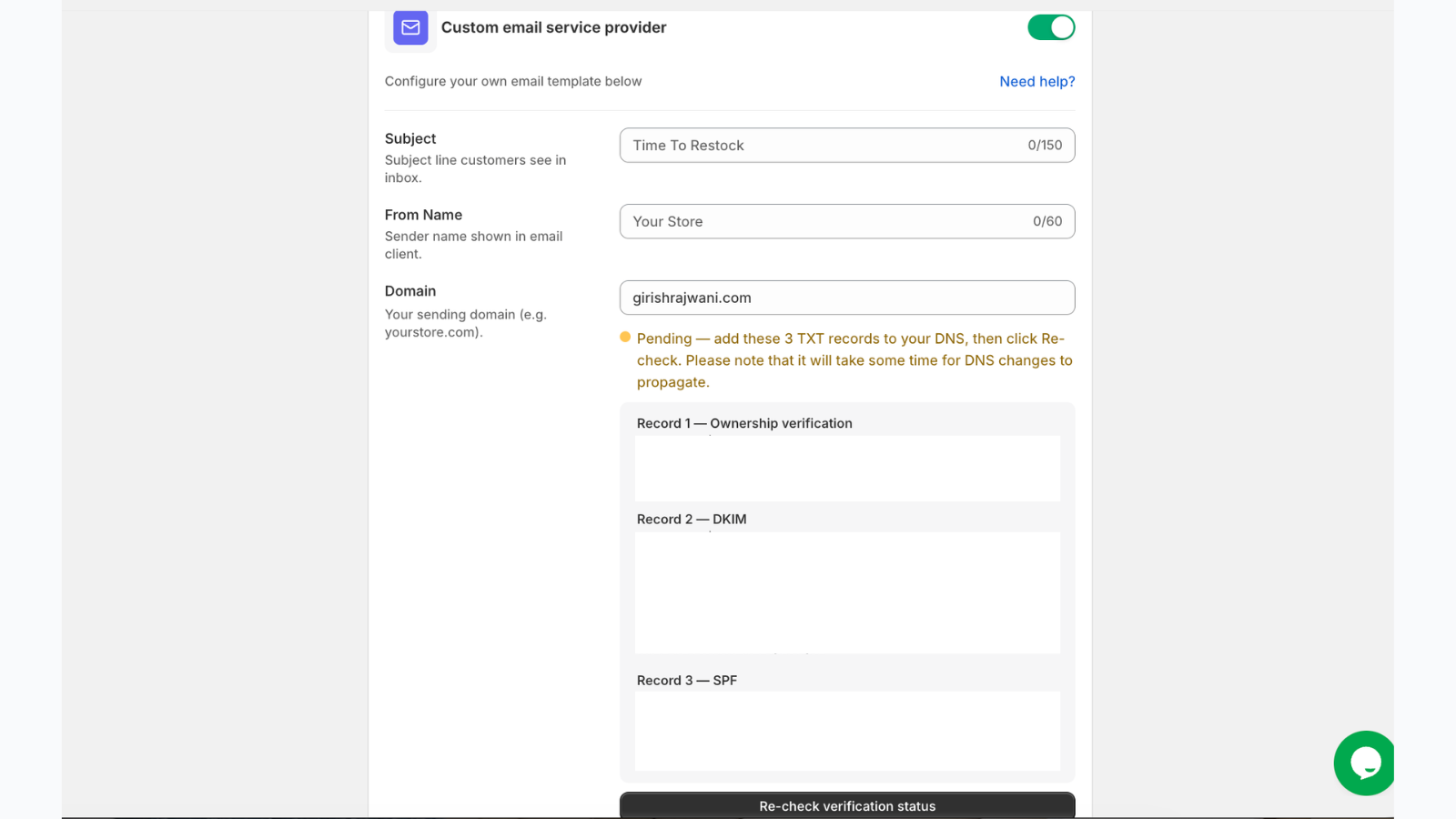
Step 2 – Add DNS Records
Section titled “Step 2 – Add DNS Records”The app displays DNS records to add in your domain registrar (Cloudflare, GoDaddy, Namecheap, Google Domains, etc.).
| Record type | Purpose |
|---|---|
| TXT (verification) | Proves domain ownership |
| CNAME (DKIM) | Enables email authentication so emails don’t land in spam |
Copy each record exactly and add them in your DNS settings.
Step 3 – Verify Your Domain
Section titled “Step 3 – Verify Your Domain”- Return to Buy Again → Reorder Reminders → Custom Email
- Click Verify Domain
- The app checks both the TXT and DKIM records
- If both pass, your domain shows as Verified

If verification fails, confirm the records are saved correctly and allow more time for propagation.
Step 4 – Build Your Email Template
Section titled “Step 4 – Build Your Email Template”Once verified, build your reminder email using the template editor inside the app:
- Set the subject line
- Add your logo and brand colors
- Customize the body text
- The reorder link is inserted automatically
- Preview before saving
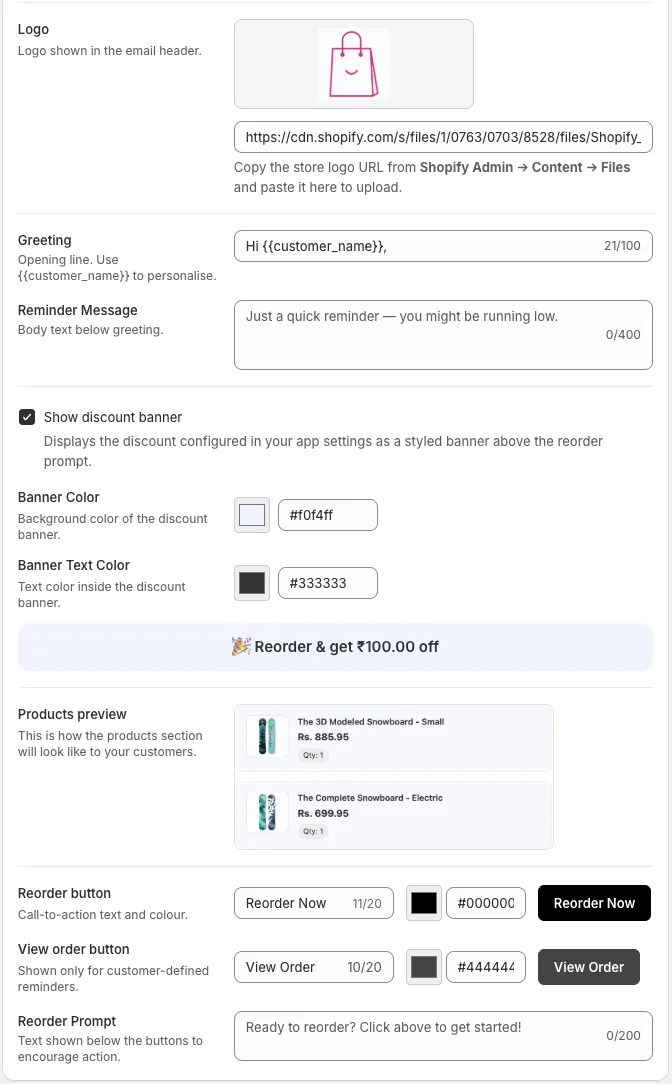
The items variable contains the order items. Use these dynamic variables in your email:
| Variable | Description |
|---|---|
{{item.title}} | Product title |
{{item.quantity}} | Item quantity |
{{item.price}} | Product price |
{{item.image}} | Product image URL |
Personalization Variables:
| Variable | Description |
|---|---|
{{customer_name}} | Customer’s name |
{{discount_text}} | Discount text |
Step 5 – Enable and Save
Section titled “Step 5 – Enable and Save”- Toggle Enable Custom Email Reminders to on
- Set your send timing (days after purchase) in the Reorder Reminders section
- Click Save
Troubleshooting
Section titled “Troubleshooting”Emails landing in spam? Make sure both the TXT and DKIM records are added and verified. DKIM is what prevents spam filtering. Re-verify after adding the CNAME if you only added the TXT initially.
Domain shows as unverified after 48 hours? Log into your DNS provider and confirm the records match exactly with no extra spaces and the correct record type. Use a tool like MXToolbox to check record visibility externally.
Can I use a subdomain?
Yes. You can send from mail.yourbrand.com or any subdomain. Add the DNS records specifically to that subdomain.