
Migrating to Shopify new customer accounts is the right move after Shopify deprecated legacy accounts in February 2026, and the new customer account is genuinely better for merchants and customers.
But migration alone doesn’t solve repeat purchases. The default experience leaves a gap: customers can view their order history, but getting them to actually reorder effortlessly is a separate problem entirely.
This post is about filling that gap with a complete reorder setup that makes reorder effortless for your customers.
Every reorder problem needs a different solution
Repeat purchases break down in different places for different customers.
| Problem | Solution |
|---|---|
| Customer in account, wants to reorder one order | Reorder popup |
| Customer wants to reorder across multiple past orders | Buy Again page |
| Customer needs a different quantity | Popup with quantity editing before adding to cart |
| Customer has a personalised or custom product | Popup carries forward original line item properties |
| Customer wants reminders on their own schedule | Customer-defined reminders set from inside the reorder popup |
A complete reorder setup for new customer accounts
1. Custom reorder popup
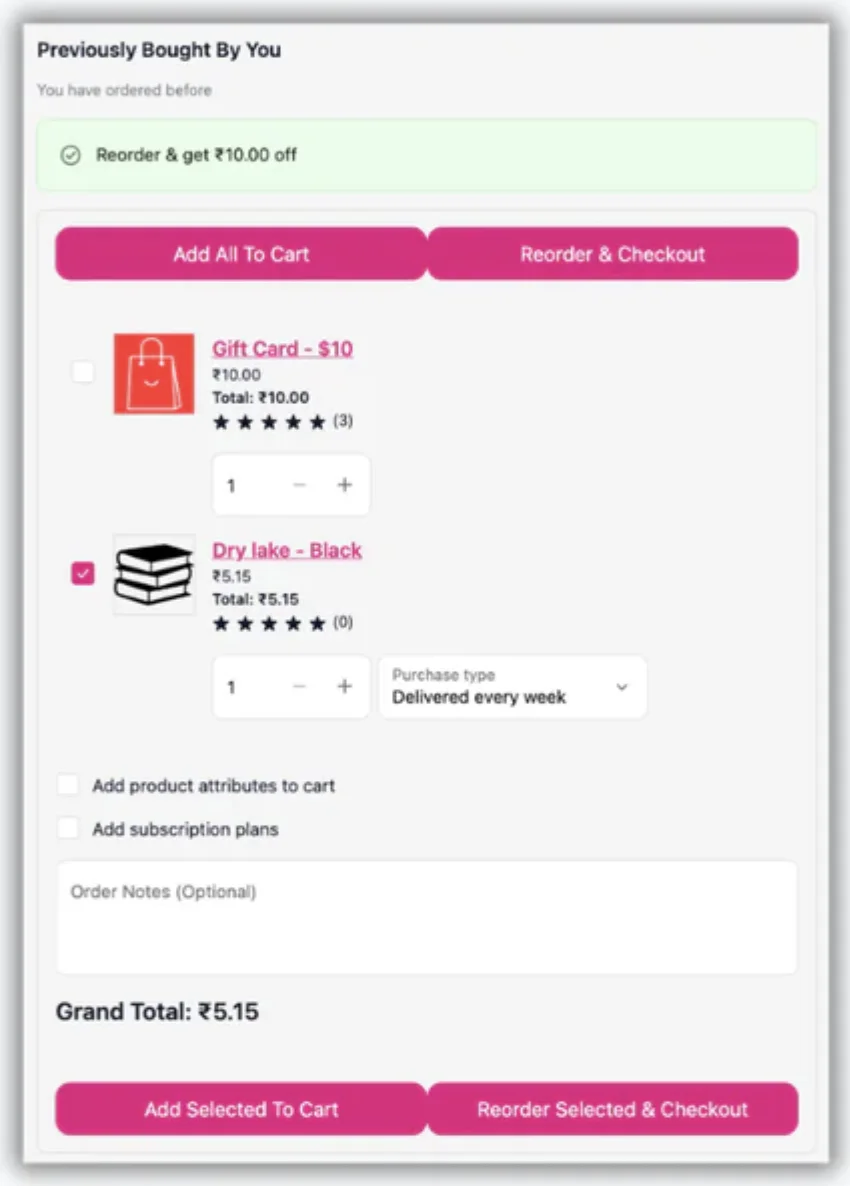
A reorder popup can be shown on the order history page and on order status page. When a customer opens it, they see all products from that specific order and can:
- Select which products to add (not all orders need to be fully reordered)
- Edit quantities before anything goes to cart because customers don’t always need exactly what they ordered last time
- Add line item properties if the product has personalisation, engravings, or custom fields, those carry through the reorder instead of being lost
- Reorder subscription products if customers wants subscription items alongside regular products in the same reorder flow
- Get a reorder discount to encourage repeat purchases. It is applied automatically when they reorder
Customers can also set their own reminder schedule per product directly from the popup, so they get notified before they run out. Read more about how reorder reminders work.
This turns an order history page from a passive record into an active reorder tool.
2. Buy Again page with all products from past history in one place
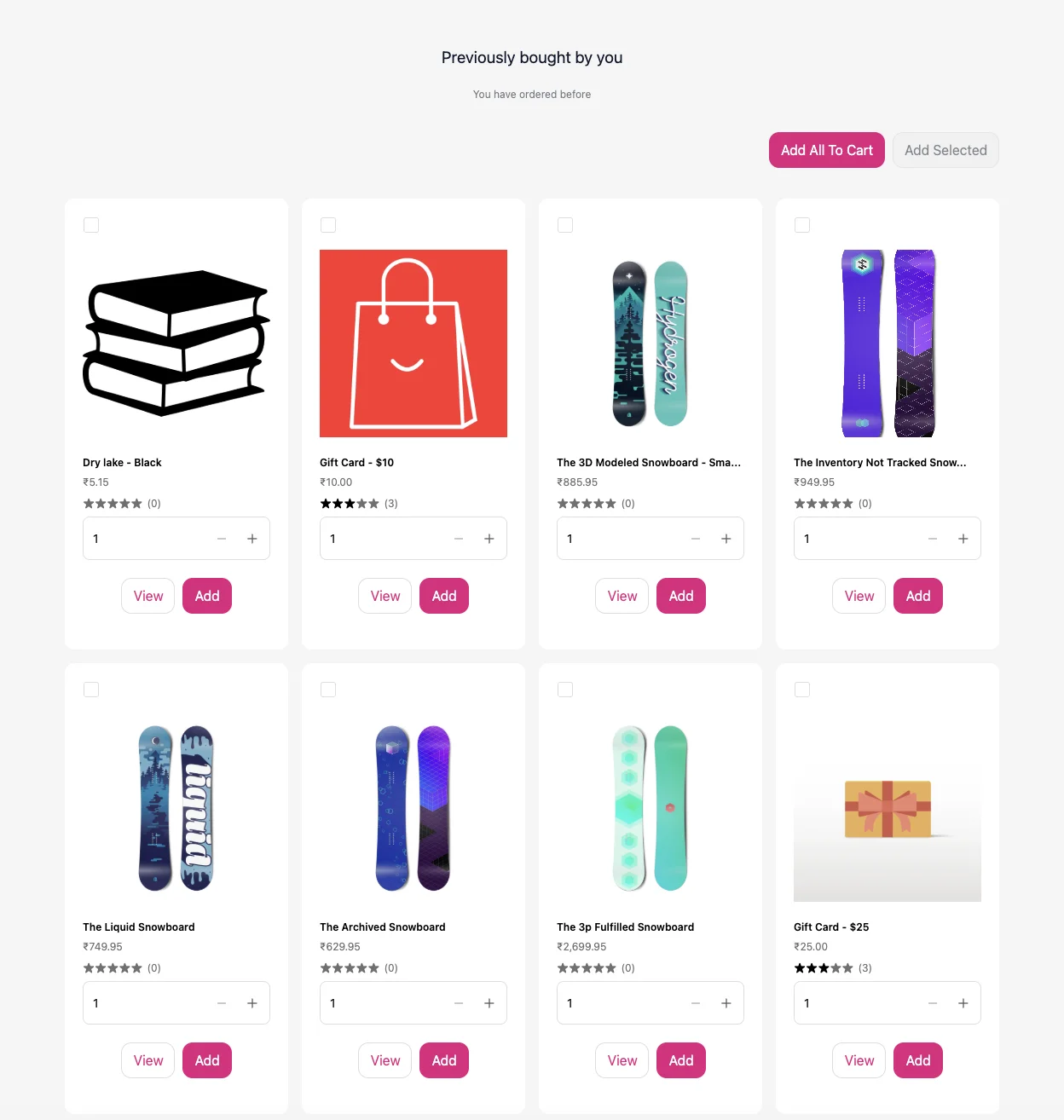
The popup is useful for order-specific reorders. But what if a customer wants to reorder something from six months ago, across three different orders?
A dedicated Buy Again page in the customer account navigation shows every product a customer has ever ordered, consolidated into one scrollable list. They add individual items or multiple products at once, and adjust quantities before checkout.
It works especially well for:
- Merchants with lots of products, where customers can find what they need without scrolling through every past order
- B2B and wholesale buyers who often need different products each time, across different orders
- Products bought infrequently, where customers have no idea which past order that item was in
This page is the difference between a customer completing checkout and one giving up and going to a competitor.
How to add reorder popup and reorder page in the Shopify new customer account?
Buy Again & Reorder Reminders helps you add a customer reorder popup and reorder page in the Shopify new customer account through the Shopify editor, without touching the code.
The new customer accounts give you the infrastructure. The reorder setup is what turns that infrastructure into repeat purchase revenue.